
C Drive Keeps Filling Up. How to Fix It?
“My C drive keeps filling up, but I can’t uninstall some programs as they’re important to me. I’ve tried to remove temp files, but the disk fills to the brim in a few days again. I am not downloading any large programs. So, how do I free up storage?”
___A Question from Reddit
If you’ve ever wondered, “Why does my C drive keep filling up,” in this post, we’ll tell you the reasons. We’ll also share 7 options to fix the ‘C drive keeps filling up’ issue, alongside some tips to manage storage better so that you never have to face this problem again.
Part 1: Why Does My C Drive Keep Filling Up?
If you’re wondering, “Why does my C drive keep filling up?” apparently, there are some minor reasons as well as serious causes for that, like the following:
- Temp files created by browsing, updates, and software installs take up space.
- Windows backups can get large.
- Hibernation file stores memory for hibernation mode, and takes up a lot of space.
- Old Windows update files and leftovers can fill up the C drive.
- Downloaded installer files left in Downloads.
- Large personal files like movies, music, and photos saved on the C drive.
- Malware/viruses can generate junk files.
- File system errors may show the wrong free space.
Part 2: How Do I Fix C Drive Keeps Filling Up Error?
If you’re contemplating that my C drive keeps filling up, but I can’t uninstall crucial programs, here are 7 options to free up storage. Pick one that suits your situation:
Option A: Run Disk Cleanup
When your C drive keeps filling up, employ a Disk Cleanup tool. This Windows-embedded utility can free space on your C drive by removing unneeded items like temp files, system files, old downloads, and Recycle Bin contents. Here’s how to execute Disk Cleanup:
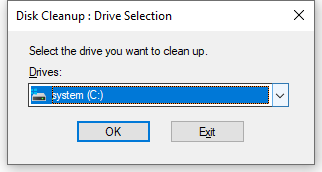
Step 1: Press “Win + R.” Type “cleanmgr.” Hit “Enter.” Then, choose the C drive. Hit “OK.”
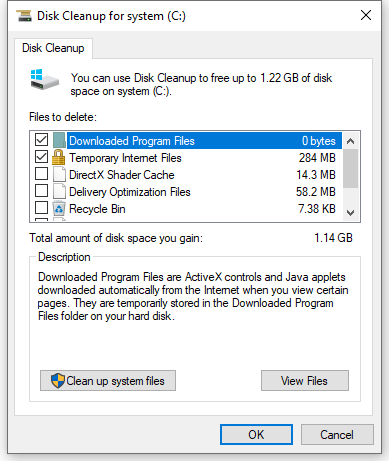
Step 2: Wait for the scan. Then, check boxes for things like temp files or the Recycle Bin. Click a file type to see what it is.
Step 3: Click Clean up system files (optional) for deeper cleanup. Hit “OK.” Next, tap “Delete Files” to finish.
Option B: Extend C Drive or Upgrade to a Larger Drive
If you’re thinking, “My C drive keeps filling up, but I can’t uninstall crucial programs,” extend your drive to a larger one. A specialized C Drive Upgrader tool like 4DDiG Partition Manager can extend the disk without data loss. It can also shrink, split, erase, restore, repair, or format the disk. Other than that, the tool provides the following functions:
- This tool can move Windows to an SSD in just a single click and without re-installing.
- You can convert MBR to GPT without any loss of data.
- The software has the capability of recovering partitions and removing recovery partitions.
- The device lets you easily back up drives so that you can restore them later on.
- It allows you to check if your PC can upgrade and bypass Windows 11 requirements.
- It has the capability of cloning a disk or repairing non-bootable PCs.
Follow the steps beneath to employ this tool to extend the C drive:
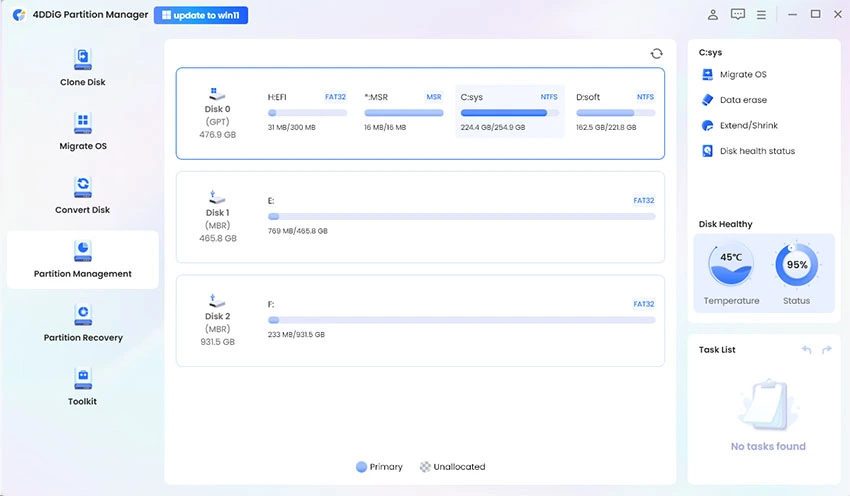
Step 1: Install and execute 4DDiG on your computer. Then, head to “Partition Management.” Choose “Extend/Shrink.”
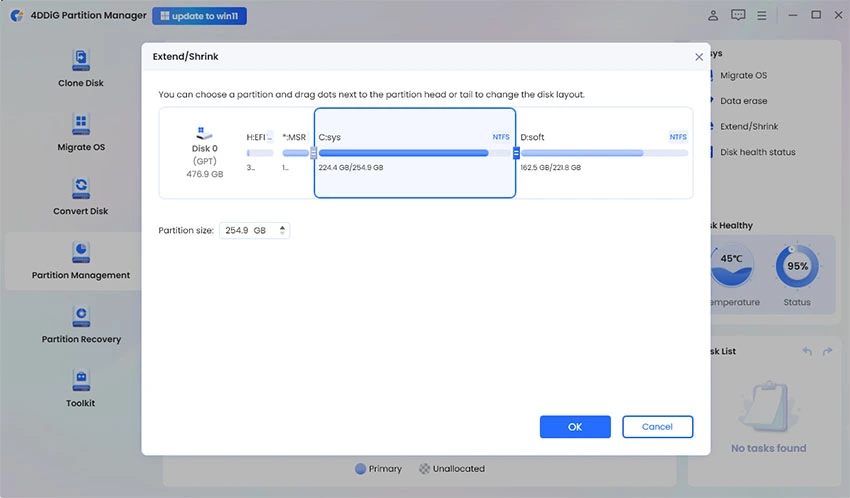
Step 2: To extend the C drive, drag its partition border to make it bigger, or shrink a nearby partition with free space and use that space for your drive.
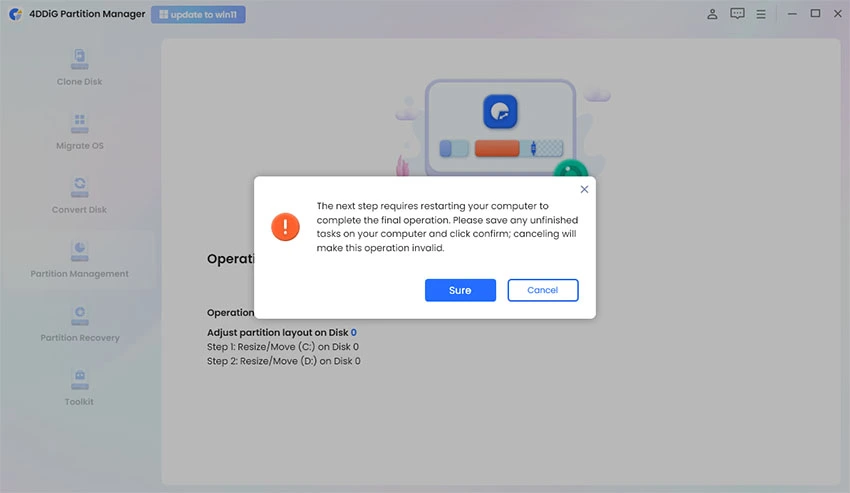
Step 3: Click “Execute 1 Task(s).” Hit “OK.” The process will take time. Don’t close the program. Your PC will restart, and the C drive will be expanded.
Option C: Scan for Malware/Virus
In case the C drive keeps filling up for no reason, it could be because of malware and viruses. They can fill up your C drive by making copies of themselves, creating lots of temp or log files, and downloading unwanted programs. So, run an antivirus program to remove those unwanted files. Here’s an example of employing Windows Defender to free up space:
Step 1: Search for “Windows Security” in the Start menu. Execute it. Then, head to “Virus & threat protection.”
Step 2: Choose “Scan options.” Next, mark “Full scan.” Hit “Scan now.”
Step 3: After the scan, follow the steps to remove or quarantine any threats found.
Option D: Move Large Files to Another External Drive
When your C drive keeps filling up on Windows 11/10, even after removing unnecessary files and programs, there might be some large files left. If they’re important to you, sort them by file size in “File Explorer” and move them to an external storage.
Option E: Delete System Restore Points
System Restore points save snapshots of your system to let you roll back if something goes wrong. However, they can take up a lot of space over time. So, your C drive keeps filling up for no reason. You can switch off “System Restore” or select another storage for backup other than the C drive. Here’s how to do that:
Step 1: Type “con” in the Windows search field on the Desktop. Then, choose “System & Security.”
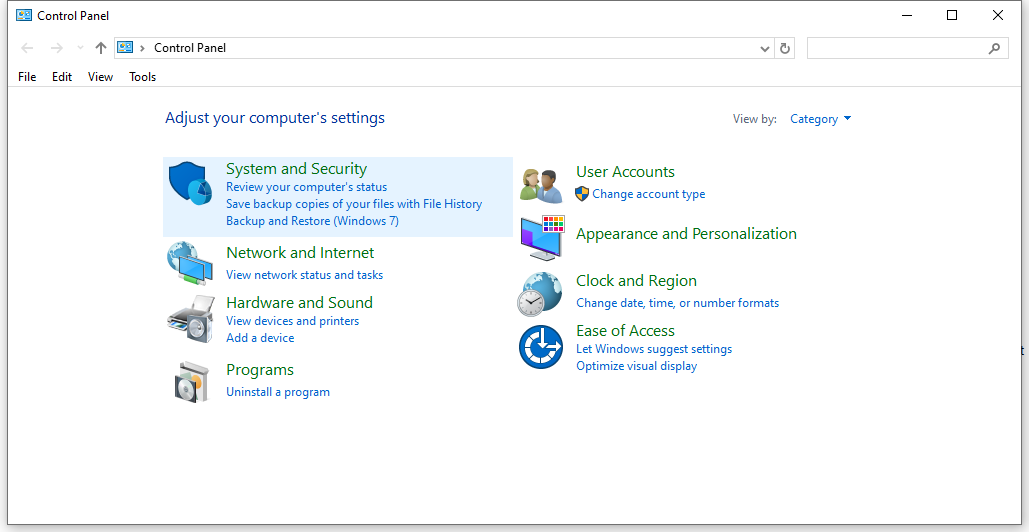
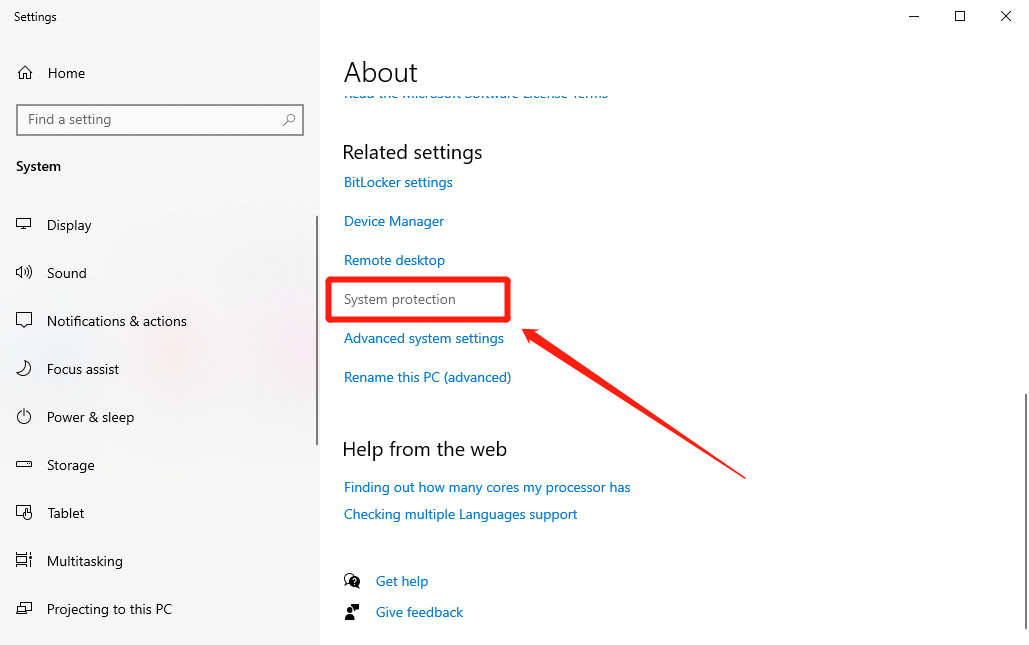
Step 2: Open “System.” Then, choose “System protection. On the “System Protection” tab, select “System Restore.”
Step 3: Switch it off or move the storage away from the C drive.
Option F: Repair Disk Errors
Over time, your hard drive can develop errors from crashes, software issues, or hardware problems. While you believe the C drive keeps filling up on Windows 11/10, these errors may cause Windows to show the wrong free space. They may also leave behind lost files that still take up room.
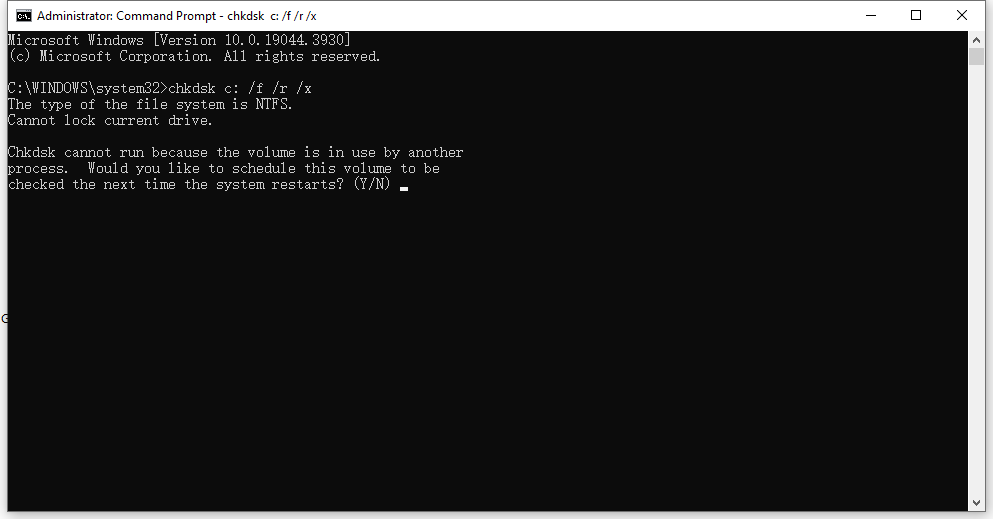
So, employ the Windows-embedded CHKDSK. It can scan the C drive, fix file system errors, mark bad sectors to stop future use, and even recover or move data. The utility also clears lost clusters, freeing up extra space, if your C drive keeps filling up on Windows 11/10. Here’s how to employ CHKDSK:
Step 1: Type “cmd” in the Windows search field on the Desktop. Then, execute “Command Prompt.”
Step 2: Type the following command. Hit “Enter” afterward:
- chkdsk C: /f /r /x

Option G: Disable Hibernation Feature
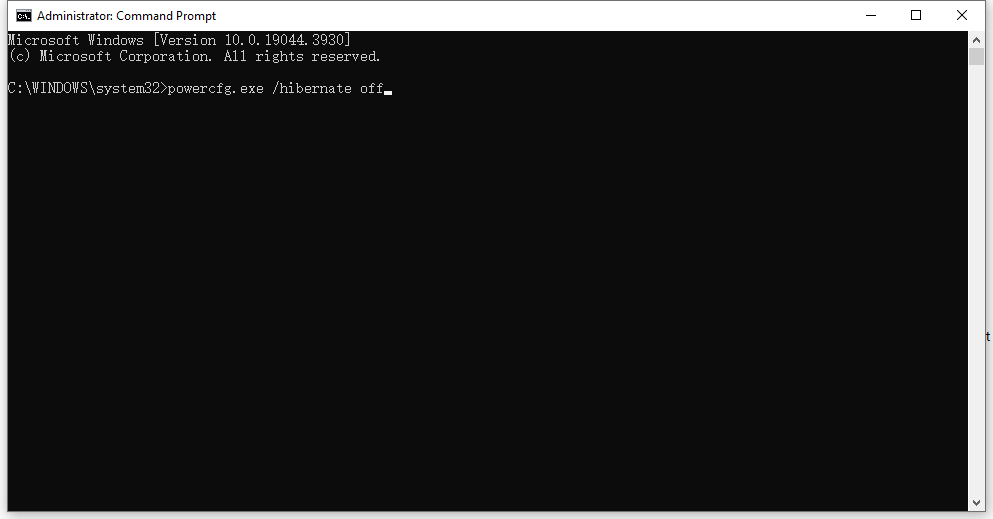
When the system shuts down, it still saves files in Hibernation Mode. The “hiberfil.sys” file is very large, often 40% to 100% of your RAM size, which could be why the C drive keeps filling up for no reason. Deactivating hibernation removes this file and clears that space. Here’s how to do that:
Step 1: Type “cmd” in the Windows search field on the Desktop. Then, execute “Command Prompt.”
Step 2: Type the following command. Hit “Enter” afterward:
- powercfg.exe /hibernate off
Part 3: Prevent C Drive from Filling Up Again
After freeing up space on your C drive, you can actually prevent it from filling up again. Here are some tips for that:
- Use Disk Cleanup or Storage Sense to clear temp files and system junk regularly.
- Empty the Recycle Bin and delete temporary files manually when needed.
- Run the disk defragmenter to keep drives optimized.
- Uninstall apps you don’t use and disable unnecessary startup programs.
- Install new programs on a drive other than C.
- Organize files into folders and move large files (videos, music, etc.) to another drive, external storage, or the cloud.
- Regularly check for and remove files you no longer need.
- Disable hibernation if not used to remove the large hiberfil.sys file.
Bottom Line
If you were wondering before, “Why does my C drive keep filling up,” temp files, old updates, large personal files, restore points, and even malware can fill it up. You can fix this issue via Disk Cleanup, by moving restore points, scanning for malware, troubleshooting disk errors, file relocation, and deactivating hibernation.
If your C drive keeps filling up, clean your system on a regular basis and organize storage. If you need a long-term solution, 4DDiG Partition Manager is an excellent choice. It allows you to increase the size of your C drive, relocate Windows over to a larger disk, and switch partitions without losing data.

Founder Dinis Guarda
IntelligentHQ Your New Business Network.
IntelligentHQ is a Business network and an expert source for finance, capital markets and intelligence for thousands of global business professionals, startups, and companies.
We exist at the point of intersection between technology, social media, finance and innovation.
IntelligentHQ leverages innovation and scale of social digital technology, analytics, news, and distribution to create an unparalleled, full digital medium and social business networks spectrum.
IntelligentHQ is working hard, to become a trusted, and indispensable source of business news and analytics, within financial services and its associated supply chains and ecosystems