In today’s fast-paced digital world, creating eye-catching visuals is more important than ever. Whether you’re a professional photographer, a social media manager, or a small business owner, high-quality images can make a significant difference. Fortunately, the rise of artificial intelligence has brought about powerful AI photo editing tools that can simplify complex tasks and improve your images with ease. These tools automate processes that once required extensive training and time, making professional-level edits accessible to everyone. This article explores some of the best AI photo editing solutions available to help you enhance your visuals and boost your creative output.
Key Takeaways
- AI photo editing tools automate complex tasks, making professional-level edits accessible to users of all skill levels.
- When selecting an AI photo editor, consider the range of features, the user interface’s suitability for your skill level, and the quality of the output.
- Key AI-specific features to look for include customization options for AI results, real-time processing for efficiency, and content generation capabilities.
- These tools can significantly increase efficiency, allowing for faster image production, especially for projects with tight deadlines.
- AI in photo editing can also enhance creativity by offering unique interpretations and inspiring new artistic directions.
Adobe Photoshop
Adobe Photoshop has long been the industry standard for image editing, and its integration of AI features, powered by Adobe Firefly, continues this tradition. These AI tools are designed to make complex edits more efficient and precise, transforming how professionals and hobbyists alike approach photo manipulation. For instance, the Remove Tool allows users to simply brush over unwanted elements, like stray objects or people, and have them disappear seamlessly from the scene. This is a significant step up from older methods that required careful cloning or healing.
Photoshop’s AI capabilities extend to more creative tasks as well. Features like Generative Fill allow you to create entirely new content based on text prompts, directly within your existing images. Need to add a specific background element or extend the canvas of a photo? Generative Fill can handle that, blending new content so naturally it looks like it was always there. This opens up a world of possibilities for compositing and conceptualizing new visuals.
Beyond object removal and content generation, Photoshop’s AI assists with finer details. The Match Font feature can identify fonts within an image, saving you the trouble of searching for similar typefaces. When resizing images, the Preserve Details 2.0 technology helps maintain clarity and sharpness, minimizing the pixelation often associated with enlargement. Even complex tasks like sky replacement are simplified, with automatic masking ensuring a clean swap.
The integration of AI into Photoshop isn’t just about adding new features; it’s about rethinking the editing workflow. Tasks that once took hours of meticulous work can now be accomplished in minutes, allowing creators to focus more on the artistic vision rather than the technical execution. This makes advanced editing techniques accessible to a broader audience.
Key AI-powered features include:
- Generative Fill: Create or extend image content using text prompts.
- Remove Tool: Effortlessly erase unwanted objects with a simple brush stroke.
- Sky Replacement: Quickly swap out skies with intelligent, automatic masking.
- Match Font: Identify and find fonts used within an image.
- Preserve Details 2.0: Resize images while maintaining quality.
While Photoshop offers a robust suite of tools, it’s worth noting that Adobe has faced security challenges in the past, with a notable breach affecting customer data. This highlights the importance of staying vigilant with your online security, even when using established software. You can find more information about Adobe’s security measures on their official channels.
Fotor
Fotor is a pretty solid choice if you’re looking for a photo editor that packs a lot of AI punch without being overly complicated. It’s been around for a while, and they’ve really leaned into using artificial intelligence to make editing tasks simpler. Think of it as a tool that can handle both the basic adjustments you’d expect, like brightness and color, and some more advanced AI-powered tricks.
One of the things that makes Fotor stand out is its range of AI-specific features. You can try out things like an AI clothes changer, which lets you swap out outfits in your photos, or an AI makeup tool that can add or alter makeup on a face. There’s also an AI hairstyle changer, which is pretty neat for experimenting with different looks. These tools often work with just a single click, and the results can be generated pretty quickly, usually within about 10 seconds. It’s quite impressive to see how a simple click can transform an image.
Fotor also offers some useful features for streamlining your workflow:
- AI Portrait Retouching: This tool automatically finds faces in your photos and works to fix common imperfections, giving portraits a more polished look.
- AI Image Extender: If you need to expand the canvas of an image, this feature uses AI to fill in the new space in a way that matches the existing picture.
- Batch Editing: For those times when you need to make the same change to a bunch of photos, like resizing or cropping, Fotor lets you do it all at once.
Fotor’s approach seems to be about making advanced editing accessible. They’ve integrated a lot of AI capabilities that can speed up common editing tasks or allow for creative changes that might otherwise require more technical skill.
When it comes to pricing, Fotor has a few options:
- Basic: This plan is free and gives you access to basic editing tools, but with limits on effects, fonts, and credits for AI generation.
- Pro: For around $3.50 a month, you get more advanced editing features and a monthly allowance of credits for AI tools. Each AI edit typically uses a couple of credits.
- Pro+: At about $7 a month, this plan includes everything in the Pro plan, plus a larger monthly credit allowance for AI features.
Phot.AI
Phot.AI is a tool that aims to simplify common photo editing tasks, particularly for those working with product photography or needing quick image enhancements. It offers a range of features designed to improve image quality and modify specific elements within a photo.
One of Phot.AI’s main draws is its ability to handle background removal and object removal. This means you can easily isolate your subject or clear away distracting elements that detract from the main focus of your image. It also includes an image enhancer that can automatically improve clarity and detail.
Here are some of the key features you’ll find:
- Background Remover: Quickly remove or replace the background of your images.
- Object Remover: Erase unwanted items from your photos.
- Photo Enhancer: Improve the overall quality, sharpness, and detail of your pictures.
- AI Image Generator: Create new images based on text prompts.
Phot.AI provides a free trial with a set number of credits, allowing you to test its capabilities before committing to a paid plan. The paid versions offer more credits or unlimited access, making it a flexible option depending on your editing volume.
Pixlr
Pixlr offers a user-friendly approach to AI-powered photo editing, making advanced techniques accessible without a steep learning curve. Whether you’re working on a desktop or a mobile device, Pixlr provides a suite of tools that can help you refine your images. It’s a good option if you want to get professional-looking results without needing to install heavy software.
One of the standout features is its AI Image Generator, which can turn your text descriptions into unique visuals. This is great for creating custom graphics or simply experimenting with creative ideas. Pixlr also includes tools for more practical edits:
- Generative Fill and Expand: These tools let you seamlessly add or extend content within an image, maintaining the original style and quality.
- AI Face Swap: This feature allows for quick face replacements in photos, opening up possibilities for creative portraits or fun edits.
- Object and Background Removal: Pixlr simplifies the process of cleaning up images by removing unwanted elements or entire backgrounds with just a click.
Pixlr’s strength lies in its browser-based accessibility and a good mix of creative and cleanup AI tools. It’s a solid choice for everyday editing tasks and for those looking to explore AI generation without a big commitment.
For those who need to quickly adjust image elements or create new ones based on prompts, Pixlr provides a straightforward way to do it. You can find more about their editing capabilities on their website.
Imagen
Imagen is a really interesting option if you’re a professional photographer looking to speed up your workflow. It’s built to learn your personal editing style over time, which is pretty neat. Think of it like a digital assistant that gets better at mimicking your look the more you use it. This means you can get consistent results without having to tweak every single slider every time.
One of the standout features is the ability to use ‘Talent AI Profiles.’ These are pre-made editing styles developed by well-known photographers. It’s a great way to experiment with different aesthetics or to get a feel for how a particular pro approaches their edits. You can apply these profiles and then fine-tune them to match your own images. It’s a good way to explore new creative directions or just to get a quick, professional look on your photos.
Imagen focuses on adapting to your unique way of editing, making it a tool that grows with you. It’s designed to streamline the post-production process for those who need efficiency and style consistency.
Imagen can help you develop a unique editing profile that adapts over time. It also gives you access to Talent AI Profiles, which are pre-built editing profiles from top photographers. This allows for a lot of flexibility in how you approach your edits, letting you try out different styles easily. You can find out more about how AI is changing photography on the digital landscape.
Aftershoot
Aftershoot is a powerful AI-driven tool designed to significantly speed up your post-production workflow, particularly for photographers dealing with large volumes of images. It focuses on automating repetitive tasks, allowing you to spend more time on the creative aspects of editing. The software is split into two main components: Selects + Edits for culling and batch editing, and Retouch for portrait cleanup.
With Aftershoot Selects, the AI analyzes your photos, identifying duplicates, flagging soft shots, and rating images based on sharpness, exposure, and the presence of faces. You can set a target number of images for your gallery, and the AI helps you cull efficiently. After culling, Aftershoot Edits uses AI to apply your chosen style and color grading. You can train the AI on your own edited galleries to learn your unique style, or use AI profiles from professional photographers available in their marketplace. This means you can get a first pass of edits done in minutes with minimal manual input. A significant benefit is that Aftershoot can be used offline, making it a flexible option for any location. It also integrates smoothly with Lightroom and other editing software, keeping your metadata intact.
Aftershoot aims to give photographers back their time by automating the more tedious parts of the job, like sorting through hundreds of photos and applying consistent edits. It’s built to work with your existing workflow, not replace it.
Aftershoot Retouch is designed for fast, natural cleanup of portraits. It handles common issues like skin blemishes, redness, flyaways, and shine on faces, all while preserving natural skin texture. It can also brighten eyes and teeth and balance facial lighting. The consistency it provides across a large set of images is a standout feature, ensuring a uniform look regardless of angle or lighting. For those who want to test its capabilities, Aftershoot offers a 30-day free trial, and the Retouching feature is available for free until September 2025, giving you ample opportunity to see how it can streamline your work. If you’re looking to speed up your editing process, especially for events like weddings, Aftershoot is definitely worth exploring to optimize your workflow.
Luminar Neo
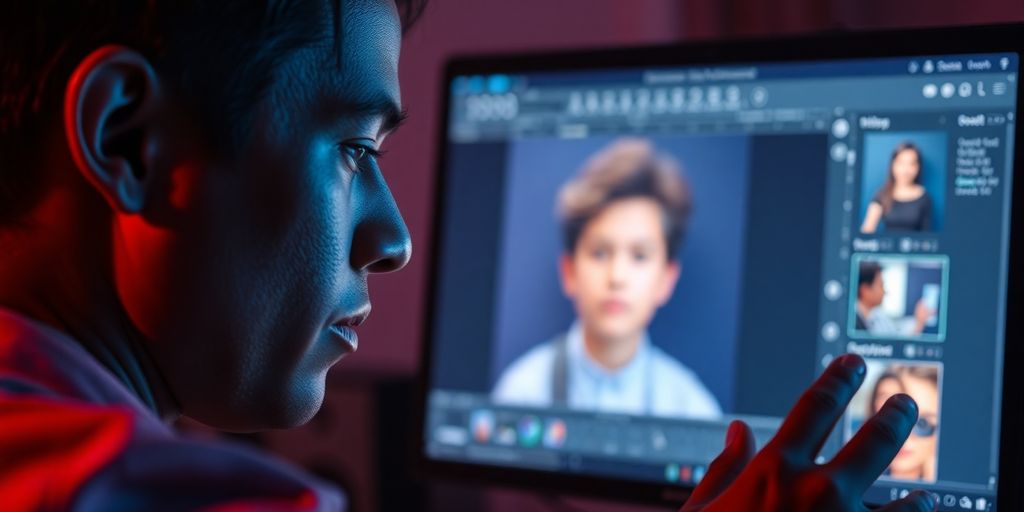
Luminar Neo is a photo editing software that uses artificial intelligence to make editing simpler. It’s available for both macOS and Windows. Think of it as a helpful assistant that can handle some of the more time-consuming tasks for you. It comes with over 20 different AI-powered editing features that can help you improve landscapes, touch up portraits, or even create special atmospheric effects. The software is designed to automate complex edits, like swapping out skies or smoothing skin, so you can get high-quality results without needing to be an expert.
One of its standout features is the AI Masking Tool. This tool can automatically identify and create masks for nine different types of objects, such as people, skies, buildings, vehicles, water, plants, mountains, and different types of ground. This makes it much faster and more precise to edit specific parts of your image. It also uses advanced vector masking, which is great for picking out details like pavement or grass, making it useful for more complex scenes beyond just people.
Luminar Neo can also help fix photos that are too dark, like those taken with the subject against a bright background. Its lighting adjustments can work based on the depth of the scene, giving you control over exposure and lighting effects.
Luminar Neo aims to streamline the editing process by automating common, complex tasks. This allows photographers to achieve polished results more quickly, especially those who want fast improvements without a steep learning curve.
Here are some of the things Luminar Neo can do:
- Object Removal: Get rid of unwanted items or distractions in your photos so your main subject really stands out.
- Background Transformation: Change backgrounds to give your images a completely new look or just make subtle adjustments for a more professional finish.
- Photo Restoration: Repair old or damaged photos by fixing scratches, improving clarity, and even adding color to bring old memories back to life.
Canva
Canva has really made a name for itself as a go-to for easy graphic design, and its AI photo editing tools fit right into that philosophy. It’s not just for creating social media posts or presentations anymore; you can actually do some pretty neat photo manipulation with it. Think of it as a way to get those complex edits done without needing to spend ages learning complicated software.
One of the standout features is Magic Edit. You can basically paint over a part of your photo and then type in what you want to appear there instead. Want to add a hat to someone? Or maybe change a plain wall into a brick one? You can give it a shot. It uses AI, and the results can be surprisingly good for quick changes.
Then there’s the Magic Eraser, which is great for cleaning up photos. Got a distracting object or a photobomber in the background? This tool lets you brush over them, and the AI tries to remove them and fill in the space realistically. It’s not always perfect, especially with complex backgrounds, but for simpler jobs, it works quite well. The Background Remover is also a big help, letting you quickly cut out subjects from their original setting, which is super handy for product shots or creating composites.
Canva also has a feature called Magic Grab. This one is pretty interesting because it can identify different elements within your photo – like the main subject, foreground objects, and background elements. Once identified, you can click on them and then resize, move, or edit them individually. It’s like being able to rearrange parts of your photo after it’s already taken.
The whole idea behind Canva’s AI tools is to make powerful editing accessible. You don’t need to be a Photoshop wizard to get decent results. It’s about simplifying the process so you can focus on the creative outcome rather than the technical steps.
Here’s a quick look at some of the AI editing capabilities:
- Magic Edit: Replace or add elements to photos using text prompts.
- Magic Eraser: Remove unwanted objects or distractions from images.
- Background Remover: Quickly isolate subjects by removing the photo’s background.
- Magic Grab: Identify and reposition individual elements within a photo.
While Canva offers a lot for free, these advanced AI editing features are typically part of Canva Pro. If you’re just dabbling, the free version is still very capable for general design work. But for serious photo editing with AI, upgrading is usually the way to go.
Freepik AI Image Editor
Freepik AI Image Editor is a straightforward tool that makes image editing accessible, even if you don’t have prior design software experience. You can simply upload your image and start making adjustments right away. It’s designed to be intuitive, allowing you to quickly modify your visuals.
With Freepik AI Image Editor, you can:
- Add, adjust, or remove elements within your photos.
- Resize images using AI-powered fill technology.
- Effortlessly swap out backgrounds.
- Improve image resolution instantly.
- Tweak brightness, color, grain, and overall tone.
I found it quite effective for tasks like removing unwanted distractions, experimenting with new backgrounds, boosting image quality, and fine-tuning lighting. The results often look polished and ready for use.
The process is quite simple: select an image, apply your desired edits, and see the changes live. It feels like having a helpful design assistant at your fingertips.
This editor is free to use, which is great for trying out its capabilities. If you want to explore more advanced features, like the Freepik AI Image Generator, a subscription plan is available. For those looking to focus on their core business operations, outsourcing tasks like content creation can be a smart move, similar to how this tool simplifies image editing for entrepreneurs.
It’s a good option if you need quick, quality edits without a steep learning curve.
AdCreative.AI
AdCreative.AI is a platform designed to help businesses and individuals create compelling visual content, particularly for advertising and e-commerce. It specializes in generating high-quality images for product photography and fashion try-ons, aiming to streamline the creative process for marketing materials. The tool is built to assist users in producing platform-specific ads and experimenting with various visual concepts quickly.
One of its standout features is the AI Fashion Try-On tool. This allows users to upload an image of an outfit, select a body type or upload their own image as a model, and then generate multiple AI-powered images of themselves wearing the chosen attire. This can be incredibly useful for online retailers looking to showcase clothing without the need for extensive photoshoots. The process is quite straightforward:
- Select the desired image type (e.g., lower body, upper body, full outfit).
- Upload the clothing item you wish to feature.
- Choose a model representation or upload your own photo.
- Generate and review the AI-created images.
AdCreative.AI is noted for its speed, with image generation often taking around 30 seconds. This efficiency is a significant advantage for those needing to produce content rapidly. The platform offers a 7-day free trial, which includes 10 watermark-free downloads, allowing users to test its capabilities before committing to a subscription. Paid plans start at $25 per month for those who wish to explore its features more extensively.
The platform’s focus on advertising assets means it’s particularly well-suited for brands that require a consistent flow of polished, high-quality visuals with precise lighting and sharpness. It aims to simplify the creation of marketing visuals, making professional-looking results more accessible.
For those looking to improve their application quality and user experience through better visuals, understanding how various tools contribute to the overall product is key. Tools that automate repetitive design tasks can free up valuable time for more strategic work, much like how efficient deployment tools can improve software quality.
Wrapping Up Your Creative Journey with AI
So, we’ve looked at a bunch of AI photo editing tools. It’s pretty clear that these programs can really change how we work with images. They make complex tasks simpler, saving time and letting us focus more on the creative side of things. Whether you’re a pro photographer or just starting out, there’s likely an AI tool out there that can help you get better results, faster. The technology is always moving forward, so keep an eye out for new options. Trying out a few different ones is the best way to see which fits your style and needs best. It’s exciting to think about what’s next in AI-powered image editing.
Frequently Asked Questions
What exactly is an AI photo editor?
AI photo editors are computer programs that use smart technology, like artificial intelligence, to help you change or make pictures better. They can do tricky things like remove unwanted stuff from a photo, change the lighting, or even create new images just from words you type. This makes editing easier and faster, even for people who aren’t expert editors.
What should I look for when choosing an AI photo editor?
When picking an AI photo editor, think about what you want to do with it. Make sure it has the tools you need, like taking things out or changing backgrounds. Also, consider how easy it is to use – some are made for beginners, while others offer more control for experts. It’s also smart to check if the tool makes pictures look good and if it can do things quickly.
Can I control the AI’s edits or customize the results?
Yes, many AI photo editors let you tweak the results. You might be able to change the style or guide the AI with your own pictures. This helps make sure the final image looks just the way you imagined it.
Can AI photo editors create new images from text?
Some AI editors can create new images from text descriptions you provide. This means you can describe what you want to see, and the AI will try to generate it for you. It’s like telling a story and having a picture appear based on your words.
How does AI make photo editing faster?
AI tools can make editing much faster. They can handle difficult tasks in seconds that might take a person a long time. This means you can get your work done quicker, especially if you have a lot of photos to edit or a deadline to meet.
Will AI replace photographers?
AI photo editors can help photographers by taking care of repetitive or time-consuming tasks, like sorting through many photos or making basic adjustments. This frees up photographers to focus more on the creative parts of their job, like capturing great shots and developing their unique style, rather than getting bogged down in technical details.

Peyman Khosravani is a seasoned expert in blockchain, digital transformation, and emerging technologies, with a strong focus on innovation in finance, business, and marketing. With a robust background in blockchain and decentralized finance (DeFi), Peyman has successfully guided global organizations in refining digital strategies and optimizing data-driven decision-making. His work emphasizes leveraging technology for societal impact, focusing on fairness, justice, and transparency. A passionate advocate for the transformative power of digital tools, Peyman’s expertise spans across helping startups and established businesses navigate digital landscapes, drive growth, and stay ahead of industry trends. His insights into analytics and communication empower companies to effectively connect with customers and harness data to fuel their success in an ever-evolving digital world.