A few weeks ago, one of us copied a camera SD card to a laptop after a zoo trip. Everything looked fine until we opened the photos. Some JPEGs wouldn’t open, a few RAW files showed only half the image, and a couple had strange colored blocks across them.
At first we assumed the files were gone for good.
 Instead of giving up, we spent a few days trying different ways to repair them. Some tools couldn’t even recognize the damaged files. Others recovered the photos, but the results weren’t usable.
One tool that consistently gave us better results was Stellar Repair for Photo.
Since quite a few people run into corrupted photos because of SD card issues, interrupted transfers, storage errors, or camera glitches, we thought it would be useful to share our experience rather than just repeat the feature list from the official website.
First Impressions
The first thing we noticed was how little there is to figure out.
You launch the software, add the damaged photos, click Repair, preview the repaired versions, and save them if you’re happy with the results. There aren’t dozens of confusing settings or menus to work through.
That simplicity actually worked in its favor. We were testing recovery results, not learning new software.
The Repair Process
We tested the software with a mix of damaged files collected from different situations.
Some photos wouldn’t open at all. Others opened with missing sections, random color blocks, or heavy distortion. We also included a few RAW camera files that had become unreadable after a storage error.
The repair process was the same every time.
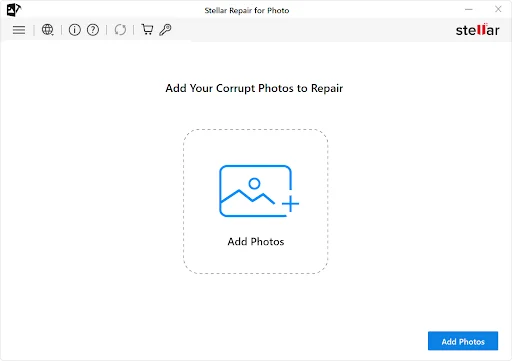
Step 1: Add the damaged files
We simply dragged the affected photos into the program. Batch importing worked without any problems.
Step 2: Start the repair
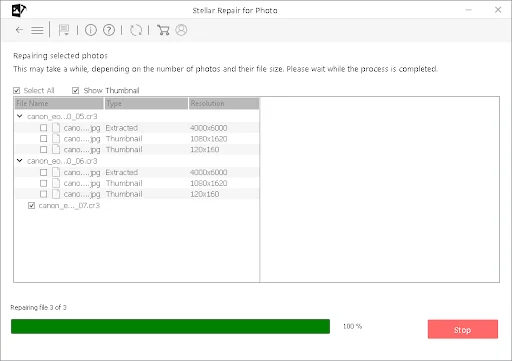
After clicking Repair, the software scanned every file automatically. Smaller batches finished quickly, while larger RAW files naturally took a bit longer.
Step 3: Preview the repaired photos
This was probably our favorite part.
Instead of asking us to save everything first, Stellar lets you preview the repaired images. That makes it easy to see whether the repair worked before deciding to purchase a license.
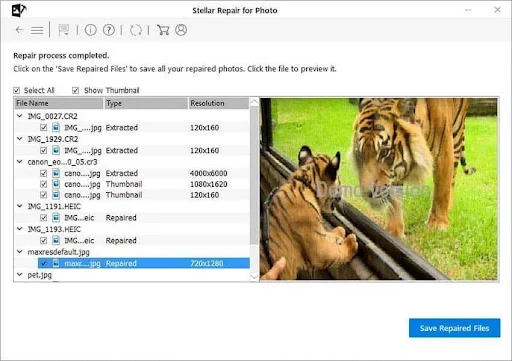
Step 4: Save the repaired files
Once satisfied with the results, we exported the repaired copies. The original damaged files stayed untouched.
We Also Tried the Free Online Photo Repair Tool
Before installing desktop software, we actually started with Stellar’s Online Photo Repair service.
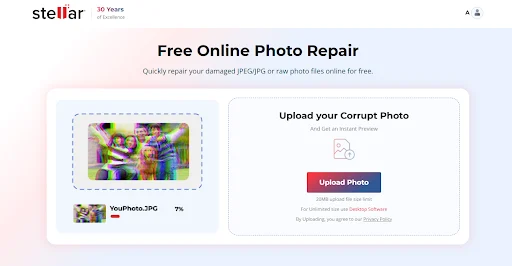 It’s surprisingly handy if you only have a few damaged photos. Upload the files, let the service process them, preview the repaired versions, and download the results if everything looks good.
For quick jobs, this is honestly the easiest option because there’s nothing to install.
When we moved on to repairing larger batches and bigger camera files, the desktop application became the better choice.
File Types We Tested
Our test included a mix of everyday image formats along with camera RAW files.
The software handled:
- JPG / JPEG
- HEIC
- TIFF
- PNG
- DNG
- CR2
- CR3
- NEF
- ARW
- RAF
- ORF
- RW2
- PSD
Support for RAW formats was particularly useful because many repair tools focus almost entirely on JPEG images.
Advanced Repair Was Useful for One File
Most of our photos repaired normally, but one RAW file remained partially damaged.
The Advanced Repair option asks for another healthy photo taken on the same camera model. After supplying that sample image, the damaged file repaired successfully.
We probably won’t need this feature often, but we’re glad it’s there for difficult cases.
Pricing: Which Version Makes Sense?
The software comes in three editions, and after testing it, the pricing actually feels fairly straightforward.
$39.99 is aimed at people who only need to repair damaged photos. If corruption is your only problem, this version covers the basics well.
$59.99 adds photo and video recovery. That’s the version we’d probably recommend to most people because photo corruption and accidental deletion often happen together, especially after memory card issues.
$69.99 includes everything above plus video repair. If you’re working with DSLR, mirrorless cameras, drones, or action cameras that capture both photos and videos, the extra $10 feels reasonable.
Our Verdict
We didn’t expect every damaged image to come back perfectly, and no repair software can promise that.
What impressed us was how often Stellar managed to recover files that other methods either couldn’t open or only repaired partially.
The workflow stayed simple from beginning to end, previewing repairs before saving is genuinely useful, and having both a free online option and a full desktop application gives people flexibility depending on how serious the problem is.
If you’ve only got a handful of damaged photos, we’d honestly start with the free online repair service.
If you’re dealing with dozens or hundreds of corrupted images, especially RAW files from a camera, the desktop version is the one we’d choose.
Overall Rating: 4.7/5
Pros
- Very easy to use
- Supports many RAW camera formats
- Batch repair works well
- Preview before saving
- Advanced Repair can rescue severely damaged photos
- Free online repair option available
Cons
- Advanced Repair needs a sample photo
- Free version doesn’t save repaired files
- Large RAW batches naturally take longer to process