A well-planned Exchange to Office 365 migration is one of the biggest infrastructure decisions an IT team will make this year — and one of the easiest to get wrong. Migrating from an on-premises Exchange Server to Microsoft 365 can modernize email and lift the burden of patching and hardware maintenance off internal staff when it’s done well.
When handled poorly, an Exchange to Microsoft 365 migration can lead to missing emails, inaccessible mailboxes, broken calendars, user authentication issues, and prolonged downtime. The result is a surge in help desk tickets, disrupted business operations, frustrated end users, and increased pressure on IT teams to resolve post-migration issues quickly.
The good news: zero-downtime migration is no longer a theoretical ideal reserved for enterprises with unlimited budgets. With the right strategy, tooling, and pre-migration planning, small businesses and large organisations alike can move thousands of mailboxes to Microsoft 365 without users ever noticing a disruption in service.
This article walks through exactly how to plan and execute that kind of migration.

Why Zero-Downtime Migration Matters
Downtime is expensive, and email downtime is uniquely disruptive because it touches every department at once — sales can’t respond to leads, finance can’t process approvals, and support can’t answer customers.
A widely cited Gartner benchmark puts the average cost of IT downtime at roughly $5,600 per minute, or around $336,000 per hour, across organisations of all sizes. Separate research from the IT Intelligence Consulting (ITIC) 2024 Hourly Cost of Downtime Survey found that over 90% of mid-size and large enterprises now estimate their downtime costs at more than $300,000 per hour, with 41% putting the figure between $1 million and $5 million per hour.
Mailbox migrations are also a common trigger for downtime incidents specifically because they touch identity, authentication, and data synchronisation all at once. A single misconfigured MX record, an incomplete mailbox sync, or a rushed cutover window can leave employees unable to send or receive mail for hours — sometimes days — while IT scrambles to fix DNS propagation or reconcile missing items.
Beyond the direct financial cost, there’s a trust cost. Employees who lose emails or calendar invites during a migration tend to distrust the new platform, generating a wave of “where did my data go” tickets that can linger for weeks after go-live.
A zero-downtime approach avoids all of this by keeping the source and destination mailboxes in sync throughout the project, so the actual cutover for each user is a matter of minutes, not hours.
Choose the Right Migration Strategy
Not every organisation needs, or can use, the same migration path. The right strategy depends on mailbox count, Exchange version, network bandwidth, and how much control you need over timing.
Cutover migration. Suitable for smaller organisations (typically under 150 mailboxes) moving everything in a single pass. It’s simple but offers little room for error recovery mid-migration, which makes it a poor fit if zero downtime is the goal.
Staged migration. Useful for larger environments moving from older on-premises Exchange versions in batches over several weeks. It spreads risk but requires careful coordination of DNS and client configuration changes between batches.
Hybrid migration. Keeps both environments connected during a longer transition period, allowing mail flow and free/busy lookups to work seamlessly between on-premises and cloud mailboxes. This is Microsoft’s recommended approach for larger enterprises, but it demands more infrastructure (Azure AD Connect, hybrid servers) and expertise to configure correctly.
Third-party, tool-assisted migration. Purpose-built migration tools abstract away the PowerShell scripting and manual trust-relationship setup that hybrid and cross-forest migrations typically require. This is increasingly the preferred route for IT teams that want predictable timelines without hiring migration consultants, particularly for tenant-to-tenant moves during mergers and acquisitions.
Whichever path you choose, the deciding factor for zero downtime isn’t really the migration “type” — it’s whether your chosen method supports incremental (delta) synchronization, so mailbox data keeps updating right up until the moment you cut users over.
Minimize Downtime During Migration
Regardless of which strategy you choose, a few practical steps consistently separate a smooth Exchange to Office 365 migration from a painful one:
- Run a pilot migration first. Move a small batch of test mailboxes — including a few “problem” accounts with large mailboxes, deep folder structures, or heavy calendar use — before touching production data at scale.
- Use incremental (delta) syncing. Instead of a single bulk copy, sync mailbox data continuously in the background so that only new or changed items need to be transferred at cutover. This shrinks the actual “downtime window” to minutes.
- Lower DNS TTL values in advance. Reducing your MX and Autodiscover record TTLs 48–72 hours before cutover ensures DNS changes propagate quickly instead of leaving users stuck on old mail servers for a day or more.
- Migrate in batches, not all at once. Batching by department or geography limits the blast radius if something goes wrong and keeps help desk ticket volume manageable.
- Communicate a clear cutover schedule. Tell users exactly when their mailbox will move and what (if anything) they need to do, such as reconfiguring Outlook profiles.
- Keep a rollback plan ready. If a batch fails validation, you should be able to pause, fix, and re-run just the failed items rather than restarting the entire migration.
- Validate before and after. Compare item counts, folder structures, and permissions pre- and post-migration to catch discrepancies before users log in.

Optimise Your Microsoft 365 Environment
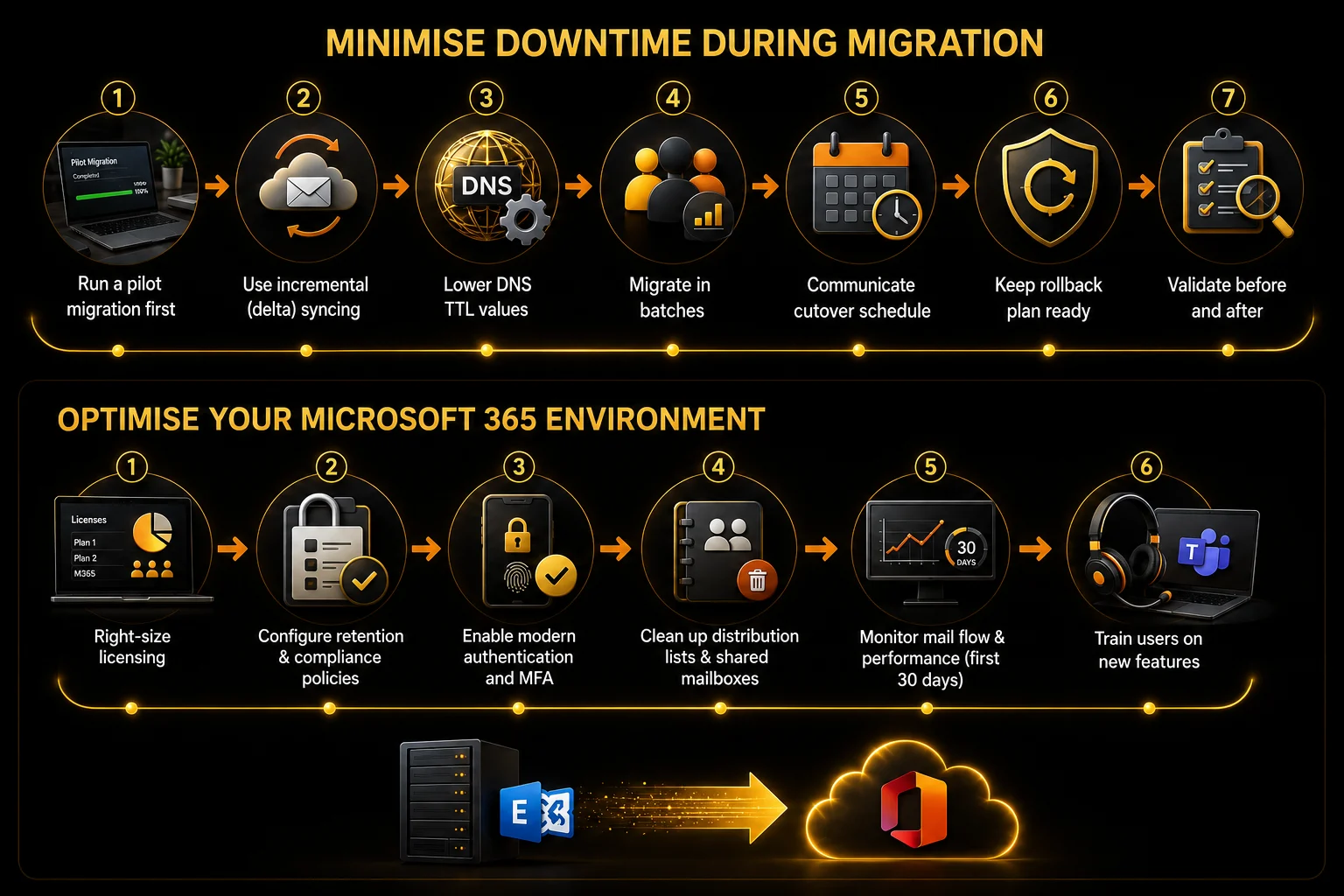
Migration doesn’t end when the last mailbox lands in the cloud. A few post-migration steps make sure the new environment actually performs better than the old one:
- Right-size licensing. Audit which users need Exchange Online Plan 1 vs. Plan 2, or a full Microsoft 365 Business/Enterprise suite, rather than defaulting everyone to the most expensive tier.
- Configure retention and compliance policies. Set mailbox retention, litigation hold, and data loss prevention (DLP) policies to match your organisation’s regulatory obligations (GDPR, HIPAA, SOX, etc.).
- Enable modern authentication and MFA. Migration is a natural checkpoint to retire legacy authentication protocols, which are a common attack vector for credential-stuffing and phishing campaigns.
- Clean up distribution lists and shared mailboxes. Migrations often surface years of orphaned lists and unused shared mailboxes — decommission what’s no longer needed.
- Monitor mail flow and performance for the first 30 days. Keep an eye on message tracking logs and user-reported issues so small problems don’t calcify into recurring complaints.
- Train users on new features, such as Teams integration, shared calendars, and the differences in Outlook Web behavior, to accelerate adoption and reduce support tickets.
Common Migration Mistakes to Avoid
Even experienced IT teams fall into predictable traps when running an Exchange migration tool project or attempting a manual cutover:
- Skipping a pre-migration mailbox audit. Oversized mailboxes, corrupted items, or orphaned permissions surface as failures mid-migration if they aren’t identified beforehand.
- Underestimating bandwidth requirements. Bulk-copying terabytes of mailbox data over a saturated WAN link can slow migration to a crawl and indirectly cause “downtime” through painfully slow mail access.
- Ignoring hybrid or cross-forest complexities. Trust relationships between Active Directory forests are notoriously fiddly to configure manually, and errors here are a leading cause of stalled migrations.
- Migrating everything in one giant batch. A single failure can force a full restart instead of a targeted retry.
- Forgetting mobile devices and third-party integrations. CRM plug-ins, mobile mail profiles, and calendar-sync apps often need reconfiguration post-migration, and users are rarely told in advance.
- Not testing free/busy and calendar sharing across environments during a staged or hybrid migration, which can quietly break scheduling for weeks.
- Treating migration as a one-time IT project rather than a change-management effort. Without clear communication, even a technically flawless migration can feel disruptive to end users.
Why Consider Stellar Migrator for Exchange?
For organisations that want the reliability of a hybrid-style migration without the overhead of standing up hybrid infrastructure or writing PowerShell scripts, purpose-built migration software is worth evaluating. Exchange to Office 365 migration tools like Stellar Migrator for Exchange are designed specifically to eliminate the manual configuration work — such as establishing Active Directory forest trust relationships — that typically slows down cross-domain and cross-forest moves.
Stellar, which has built email recovery and migration products since 1993, offers an Exchange migration tool that positions Stellar Migrator for Exchange around a few capabilities that matter directly for zero-downtime projects:
- Delta (incremental) migration, so only new or modified items transfer after the initial sync, keeping the final cutover window short.
- Parallel mailbox migration, supporting up to 10 mailboxes simultaneously to reduce total project time for larger batches.
- Direct cross-forest, same-domain, and cross-domain migration using IP addresses and server credentials, bypassing the need to manually configure AD trust relationships.
- Pre-migration validation to catch permission and connectivity issues before they cause failures mid-run.
- Re-run for failed items only, rather than restarting an entire batch if a subset of items fails.
- Audit logs and reporting to support GDPR, HIPAA, and other compliance requirements.
According to Stellar’s own product materials, the tool supports migrations of thousands of mailboxes with real-time dashboards for visibility, and it’s marketed as script-free, meaning IT generalists — not just certified Exchange engineers — can run a migration project. Pricing starts with a free trial covering two mailboxes, with paid tiers reported around $3 per mailbox for a 500-mailbox migration and custom enterprise quotes for larger deployments.
Stellar Migrator for Exchange in Practice
For IT teams juggling a merger timeline, a tenant consolidation, or a long-overdue move off legacy Exchange hardware, this kind of guided, GUI-based workflow can compress a project that might otherwise take a specialized consultant weeks to plan into something an internal team can execute confidently in days.
Conclusion
Zero-downtime migration from Exchange to Microsoft 365 is achievable, but it depends on getting three things right: choosing a migration strategy that matches your environment’s complexity, using incremental sync to minimize the actual cutover window, and avoiding the common planning mistakes — skipped audits, oversized batches, ignored bandwidth constraints — that turn a routine migration into an outage. With downtime costs running into the hundreds of thousands of dollars per hour for many organisations, the planning effort pays for itself many times over.
Whether you build the migration around Microsoft’s native hybrid tools or a purpose-built solution like Stellar Migrator for Exchange, the underlying principle is the same: keep source and destination in sync, move users in controlled batches, and communicate clearly throughout. Get those fundamentals right, and your organisation can land in Microsoft 365 without your users ever feeling the ground shift beneath them.