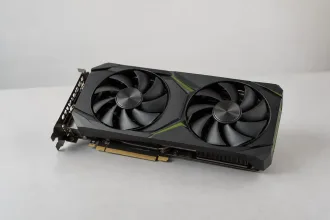
The RTX 5070 is the best starting point for most people building a single-PC setup for 1440p gaming and streaming. Choose the RTX 5060 Ti 16GB when its retail price makes it a worthwhile saving, or the RTX 5070 Ti for demanding games, more memory, and heavier recording workloads.
The RTX 5090 offers the most performance, but its price is difficult to justify for an ordinary livestream. A good buying decision starts with your games, streaming platform, and recording plans.
These recommendations are editorial judgments based on official specifications and platform requirements. Gaming frame rates depend on your CPU, game, resolution, and graphics settings.
The most relevant Nvidia GPUs compared
The table separates the features that matter for gaming from the hardware that compresses your stream.
| Desktop GPU | VRAM | NVENC engines | GPU power rating | US launch starting price | Recommended role |
|---|---|---|---|---|---|
| RTX 5060 | 8GB | 1, ninth generation | 145W | $299 | Budget 1080p gaming and streaming |
| RTX 5060 Ti 16GB | 16GB | 1, ninth generation | 180W | $429 | A lower-cost build with more memory |
| RTX 5070 | 12GB | 1, ninth generation | 250W | $549 | Balanced 1440p gaming and streaming |
| RTX 5070 Ti | 16GB | 2, ninth generation | 300W | $749 | Demanding gaming, streaming, and recording |
| RTX 5080 | 16GB | 2, ninth generation | 360W | $999 | A premium 4K gaming setup |
| RTX 5090 | 32GB | 3, ninth generation | 575W | $1,999 | Maximum gaming and production capacity |
All six support hardware H.264, HEVC, and AV1 encoding. The engine count describes physical encoding hardware, not the maximum number of streams you can create. Specifications: RTX 5060 family, RTX 5070 family, RTX 5080, and RTX 5090.
The prices above are Nvidia’s original US launch starting prices, not current retail quotes. Compare the actual price of available cards, including tax and any necessary power-supply upgrade. Factory-overclocked models and regional prices can differ substantially. See Nvidia’s launch announcements for the RTX 5060 family and RTX 5070–5090 models.
Why NVENC matters more than the model number
A gaming stream involves three different jobs:
- Running the game: rendering the graphics at your chosen settings.
- Building the broadcast: combining gameplay, webcam video, overlays, and alerts.
- Encoding the video: compressing those finished frames for transmission.
NVENC is Nvidia’s dedicated hardware video encoder. Selecting it in OBS shifts video compression away from CPU-based x264 encoding. OBS recommends modern hardware encoders for their efficiency and small performance impact. See OBS’s hardware encoding guidance.
This explains why a modest RTX card can produce a good stream. Buying more gaming performance does not automatically produce a proportional improvement in encoded picture quality.
However, OBS still needs resources to assemble its scenes. A game that consumes all available GPU capacity can leave a powerful card struggling to deliver a smooth broadcast. See OBS’s encoding performance troubleshooting guide.
Nvidia also offers creator software alongside its graphics hardware. For a broader view of how its gaming, graphics, and creative technologies connect, explore the Nvidia ecosystem.
Which Nvidia GPU should you choose?
RTX 5060: the budget choice for 1080p gaming
Start here if you play at 1080p, use a straightforward OBS layout, and want to control the cost of a new build.
Its 8GB of memory calls for sensible texture settings in demanding games. Check performance in the titles you actually play before assuming it will deliver your preferred frame rate.
Choose it when: your games run comfortably at your target settings and the savings improve the rest of your setup.
RTX 5060 Ti 16GB: the lower-cost option with more memory
This is a useful candidate for 1080p gaming, some 1440p workloads, and a setup that also handles editing or memory-heavy assets.
Specify the 16GB version when shopping: an 8GB RTX 5060 Ti also exists. The extra memory helps when a workload exceeds 8GB; it does not automatically improve every game or stream.
Choose it when: memory capacity matters and its actual price sits comfortably below the RTX 5070.
RTX 5070: the balanced recommendation
The RTX 5070 is the first card to compare for a new 1440p gaming and streaming PC. It suits someone who wants gaming headroom without moving into the more expensive tiers.
Its 12GB of VRAM is a trade-off to consider if you use large texture packs or demanding creative applications.
Choose it when: gaming performance matters more than having the largest memory capacity at this price level.
RTX 5070 Ti: the upgrade for demanding workloads
The RTX 5070 Ti is worth considering when you combine demanding games with local recording, multiple outputs, or a complex production setup.
Its 16GB of memory and two NVENC engines give it more capacity for those workloads. That additional capacity is most useful when you actually run separate encodes.
Choose it when: you can identify a workload that benefits from the extra resources and the retail premium fits your budget.
RTX 5080: for a premium 4K gaming setup
Consider the RTX 5080 when playing at 4K is a central requirement. You can still broadcast at 1080p or 1440p while enjoying a higher-resolution game locally.
It has the same NVENC generation and engine count as the RTX 5070 Ti. The main reason to move up is your gaming or creative workload.
Choose it when: benchmarks in your games justify the extra cost.
RTX 5090: maximum performance for a specific need
The RTX 5090 belongs on the shortlist for demanding 4K gaming and substantial production work. Its 32GB of memory can also matter for workloads beyond streaming.
Before buying, account for its power requirements, cooling, and the total system cost.
Choose it when: you need its additional capacity for work you will actually do.
Twitch or YouTube: choose the codec your platform accepts
Your GPU’s codec support and your platform’s accepted input formats are separate questions.
Twitch: distinguish standard streaming from Enhanced Broadcasting
For a conventional Twitch stream, NVENC H.264 remains the straightforward starting point. A 1080p60 stream at 6,000 Kbps is a common baseline; follow the settings supported by your account and OBS service configuration.
Twitch’s newer 2K mode changes the decision. In June 2026, Twitch made 1440p streaming through Enhanced Broadcasting available to Partners and Affiliates. This path uses HEVC, with bitrates up to 9 Mbps for 1440p and 7.5 Mbps for 1080p. See Twitch’s 1440p streaming announcement.
Twitch’s current help guidance says it does not offer AV1 or 4K streaming. An AV1-capable GPU is still useful for other destinations and recording, but AV1 is not the reason to upgrade a Twitch-only setup. See Twitch’s current 2K streaming guidance.
When using Enhanced Broadcasting, let OBS configure the supported outputs. Check the total encoding load and upload bandwidth: multiple renditions can require more than the bitrate of the highest-resolution stream.
YouTube: AV1 is a useful option
YouTube accepts H.264, HEVC, and AV1. Its published live-ingest recommendations currently include:
| Stream resolution | Recommended AV1 or HEVC bitrate | Recommended H.264 bitrate |
|---|---|---|
| 1080p at 60 fps | 12 Mbps | 17 Mbps |
| 1440p at 60 fps | 24 Mbps | 34 Mbps |
| 4K at 60 fps | 35 Mbps | 50 Mbps |
These are recommended ingest settings, not minimum connection speeds. Allow additional bandwidth for audio, overhead, and other activity. YouTube also publishes lower minimum bitrates; treat those as minimums, not a promise of clean fast-motion video. See YouTube’s live encoder recommendations.
AV1 makes RTX 40- and 50-series cards attractive for YouTube. Choose your GPU tier according to the game you are running alongside the stream.
For HDR, check the complete workflow separately. YouTube currently specifies HEVC for HDR live input and does not support AV1 HDR ingest.
How much VRAM and how many encoders do you need?
VRAM: buy for the game and your other applications
A practical way to assess memory capacity is:
- 8GB: consider it for a budget build after checking your games and texture settings.
- 12GB: a middle option that needs closer scrutiny for unusually demanding workloads.
- 16GB: more room for memory-heavy games, mods, and creative applications.
- 32GB: a specialist requirement that should be justified by measured usage.
VRAM is capacity. A slower GPU with more memory does not automatically outperform a faster GPU with less memory.
When comparing game benchmarks, look at stutter and frame-time consistency as well as average FPS. Check results at your intended settings, and distinguish base frame rates from figures boosted by frame generation.
One NVENC engine can handle more than one encode
You do not need two physical NVENC engines simply to stream and record simultaneously. A single engine can support multiple encoding sessions, within its throughput and resource limits.
Additional engines increase aggregate encoding capacity. They become more relevant when you produce separate high-resolution recordings, multiple platform outputs, or several broadcast renditions. Nvidia’s documentation distinguishes this increased throughput from single-session performance. See Nvidia’s NVENC application note.
For multistreaming, sending one encoded feed to a cloud restreaming service has different demands from creating separate Twitch H.264 and YouTube AV1 outputs locally. Count the encodes your PC actually performs.
Recording with OBS’s “same as stream” option can reuse the livestream encode. It reduces additional encoding work, but the recording retains the stream’s compression quality.
For ordinary streaming, start with the gaming performance you need. Move up for encoding capacity when your real output configuration demands it.
Are older Nvidia GPUs still worth buying?
A good discount can make an RTX 40-series card a sensible purchase.
| Older desktop GPU | Relevant features | When to consider it |
|---|---|---|
| RTX 4060 | 8GB; one eighth-generation NVENC engine; AV1 encoding | A discounted 1080p build or an encoding-focused PC |
| RTX 4070 Super | 12GB; one eighth-generation NVENC engine; AV1 encoding | A less expensive alternative for a 1440p setup |
| RTX 4070 Ti Super | 16GB; two eighth-generation NVENC engines; AV1 encoding | A discounted gaming and recording setup |
These specifications remain useful even though newer cards exist. Compare warranty, condition, actual game performance, and total cost. Specifications: RTX 4060 family and RTX 4070 family.
An RTX 30-series card can still stream using H.264 or HEVC, but it lacks hardware AV1 encoding. If you already own one and your broadcast works well, an upgrade may bring little benefit to the stream itself. See Nvidia’s video encoder support matrix.
Owners of capable RTX 4080- or 4090-based systems should also identify a specific limitation before replacing the GPU.
For a used purchase, request a demonstration under sustained load, check for visual artifacts or crashes, and verify the seller’s return terms.
Single-PC, dual-PC, and console streaming
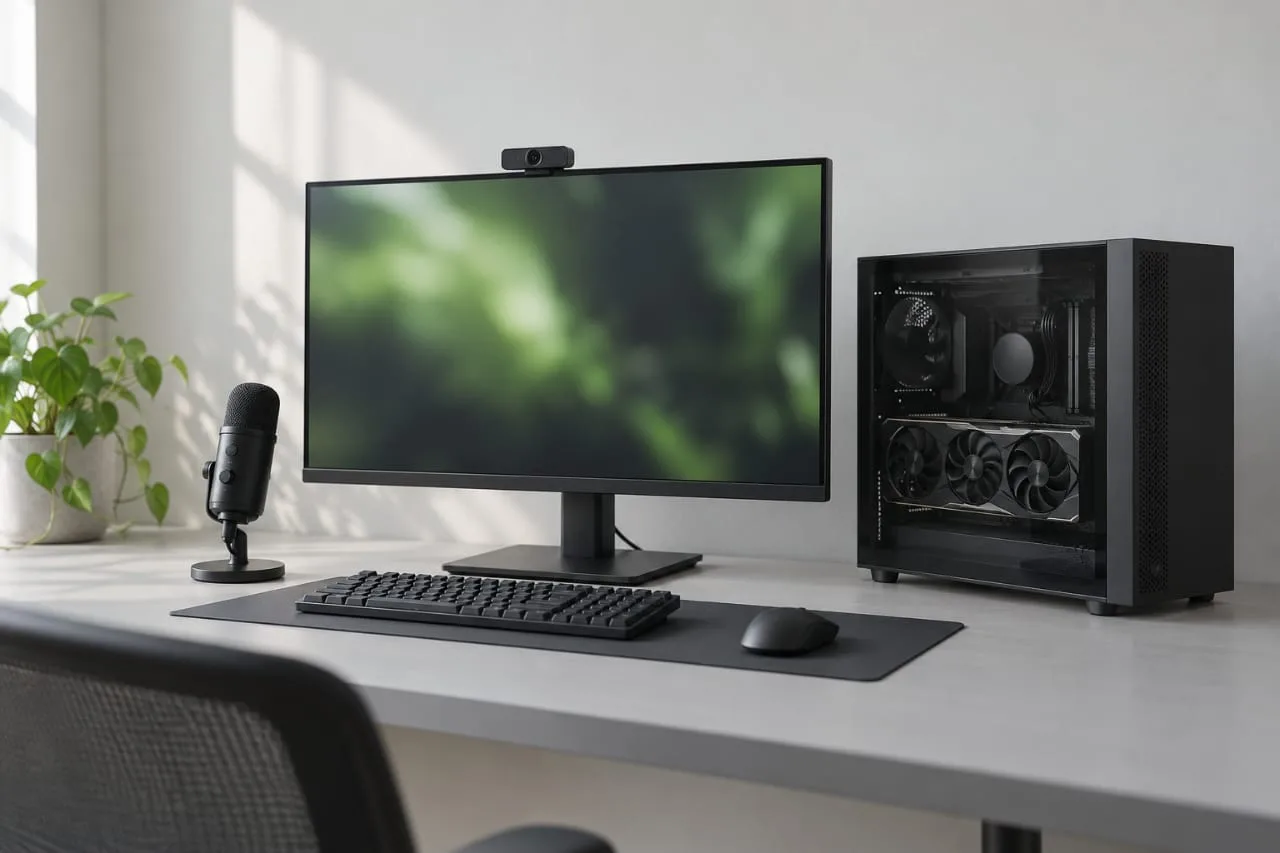
For a single-PC setup, the GPU must serve the game and broadcast together. This is where the RTX 5070 or 5070 Ti becomes particularly relevant.
For webcam streams, tutorials, and presentations, test your existing hardware first. These workloads often need far less graphics performance than gaming; a microphone or lighting upgrade may be the better use of your budget.
For a dedicated streaming PC, the game runs elsewhere. A modest card may be sufficient because the streaming computer mainly handles capture, scenes, and encoding.
The RTX 5050 is another candidate for that role: it provides one ninth-generation NVENC engine and AV1 support, with an original US launch starting price of $249. Compare it with discounted RTX 4060 cards and the RTX 5060. See the RTX 5050 specifications and launch announcement.
For console streaming, check the capture device as carefully as the GPU. Its capture resolution and frame rate can differ from its HDMI passthrough capabilities. Confirm support for the features you need, such as HDR, VRR, and your display’s refresh rate.
A second PC adds equipment and setup work. Establish that the simpler setup cannot meet your requirements before paying for it.
Practical OBS settings to start with
For a conventional single-PC 1080p60 SDR stream, the following is a conservative starting configuration. Use your platform’s supported encoder and bitrate.
| OBS setting | Starting choice |
|---|---|
| Encoder | NVIDIA NVENC H.264 for standard Twitch; NVENC AV1 for supported YouTube output |
| Output resolution | 1920 × 1080 |
| Frame rate | 60 fps for gameplay; consider 30 fps for mostly static content |
| Rate control | CBR |
| Video bitrate | Match the platform and your stable upload capacity |
| Keyframe interval | 2 seconds |
| Preset | P5 initially; test P6 after confirming stability |
| Tuning | High Quality |
| Multipass | Single Pass initially |
| Look-ahead | Off initially |
These are starting choices, not universal optimum settings. Nvidia’s guide recommends P6 and two passes at quarter resolution for higher quality; test those once your setup is stable. Enhanced Broadcasting may manage these settings automatically. See Nvidia’s OBS broadcasting guide.
For local recordings, use a separate quality-based configuration when you want a better copy than the livestream. CQP around 18–23 is a reasonable trial range: lower values generally increase quality and file size.
Record to MKV and remux to MP4 if your editor needs it. Separate microphone and game audio tracks also make later editing easier. Confirm that your editor supports the chosen codec. See OBS’s advanced recording guidance.
Check the rest of the system before spending your budget
Upload speed
Use sustained upload performance to the streaming service, not download speed or a single peak speed-test result.
As a starting rule, keep total outgoing streaming traffic around 75% or less of your stable upload capacity. A single 6 Mbps video stream is more comfortable on a reliable connection with roughly 10 Mbps or more of available upload. Ethernet is preferable when Wi-Fi is inconsistent. See OBS’s stream connection troubleshooting guide.
Multiple outputs need a larger allowance. Add their bitrates, audio, and overhead when assessing the connection.
CPU, RAM, and storage
NVENC reduces the CPU’s encoding burden, but the CPU still runs the game and other applications. Check whether CPU load or memory pressure rises when alerts, browser sources, and chat tools are active.
For a new gaming and streaming build, 32GB of system RAM is a practical target. An existing 16GB system may be adequate for a simpler workload.
For local recording, check sustained drive performance and available space. Make a test recording with your actual settings and measure its file size before estimating storage for a long session.
Power supply, case, and noise
Nvidia lists reference system-power recommendations of 550W for the RTX 5060, 600W for the 5060 Ti, 650W for the RTX 5070, 750W for the 5070 Ti, 850W for the RTX 5080, and 1,000W for the RTX 5090. Your CPU, other components, and the card manufacturer’s requirements can change the appropriate PSU choice. Check the RTX 5060, RTX 5070, RTX 5080, and RTX 5090 specification pages.
Check card length, thickness, power connectors, and cable clearance. Between cards using the same GPU, quiet cooling, warranty, and case compatibility can matter more than a small factory overclock.
Nvidia Broadcast offers tools such as noise removal and background effects. Test your chosen effects during gameplay; their processing load is another part of the complete workload. See Nvidia Broadcast’s features and requirements.
Test your current setup before buying an upgrade
Run a 20-minute trial using your most demanding game, normal OBS scenes, webcam effects, and intended recording settings. Open View → Stats in OBS.
| Symptom | What to investigate first |
|---|---|
| Frames missed due to rendering lag | GPU headroom, scene complexity, and game settings |
| Frames skipped due to encoding lag | Encoder workload, output resolution, presets, and simultaneous encodes |
| Dropped frames marked as network-related | Upload capacity, connection stability, and ingest-server routing |
| Smooth video that becomes blocky during movement | Bitrate, codec, and output resolution |
OBS documents rendering-resource problems separately from connection-related dropped frames. Use that distinction to identify the component that needs attention. See OBS guidance on encoding performance and stream connections.
Try capping the game’s frame rate, simplifying expensive scenes, or reducing output settings, then repeat the same trial. For fast-motion content at a restricted bitrate, a lower-resolution stream can retain more detail than an over-compressed 1080p output. See Nvidia’s guidance on high-motion streaming.
Buy a stronger GPU when the test shows you need more gaming, rendering, memory, or encoding capacity. If the limiting factor is your connection, changing the graphics card will leave that problem unresolved.