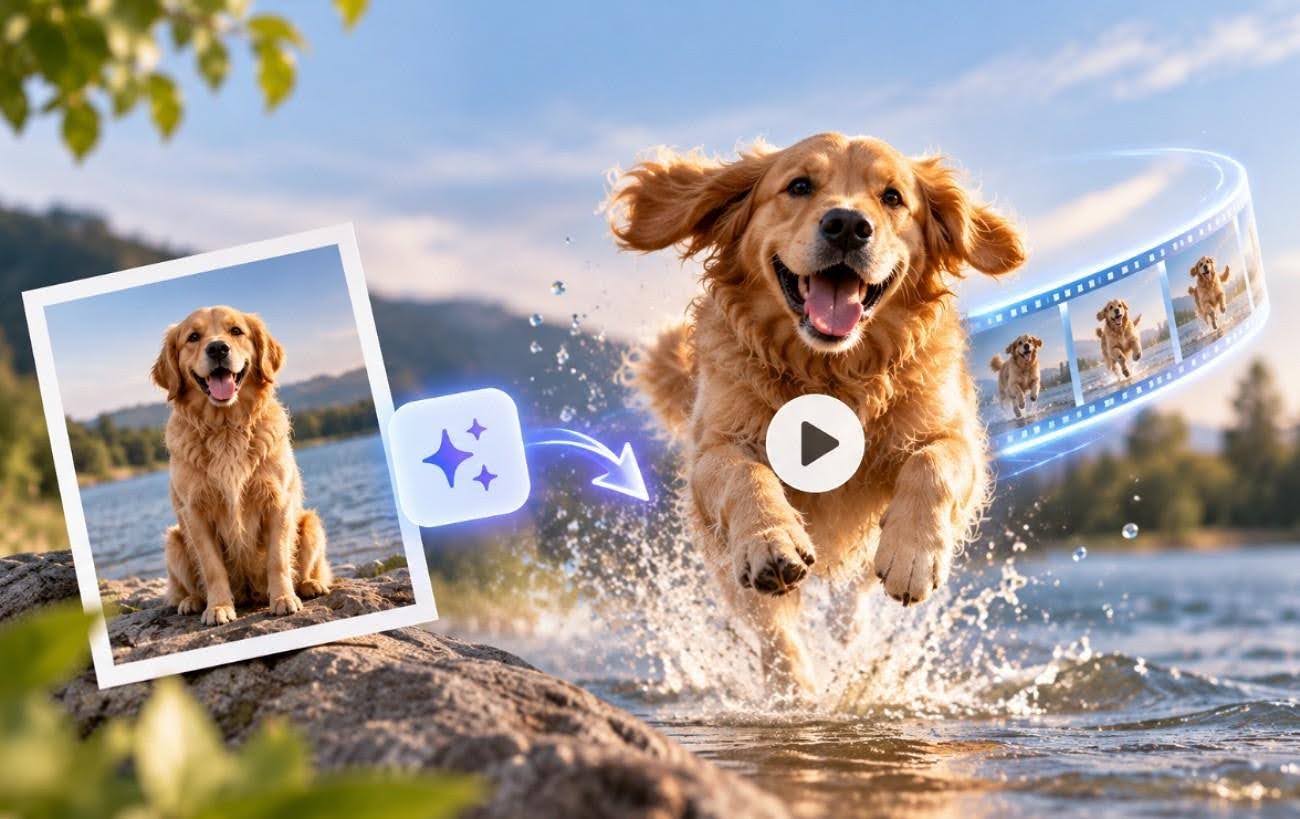
One still photograph is enough to create a short video clip. AI models study the image and the position of its elements, then generate new frames showing how the scene could move. Knowing how to animate a picture depends on one important rule. Describe the movement you want rather than the image itself, because the model can already see what the picture contains.
Part 1. How to Animate a Picture with AI from a Static Image
Most image-to-video tools follow the same basic process, from uploading the source image to exporting the finished clip. The steps below explain how to animate a photo by separating what the image provides from the movement described in the prompt:
Step 1. Open Magiclight AI, or other tools like Runway or Kling, switch to the Toolbox tab, and upload the image you want to animate. Magiclight supports JPG, PNG, and JPEG images up to 10 MB.
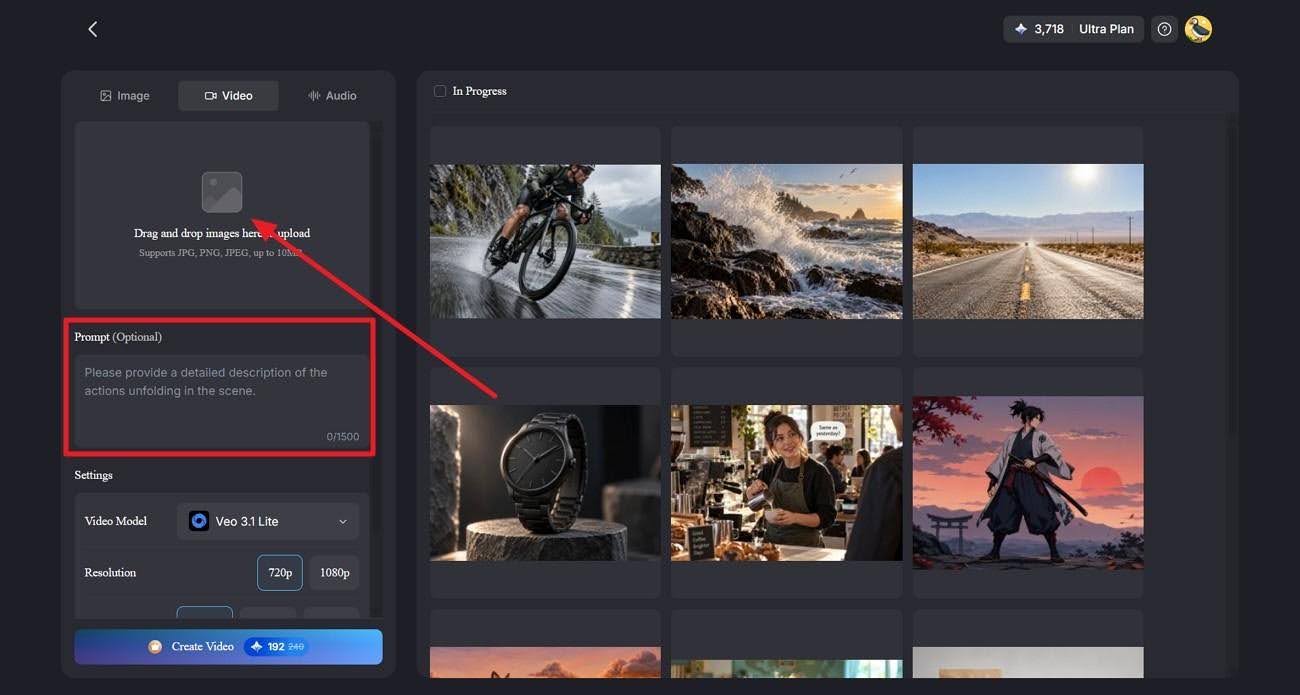
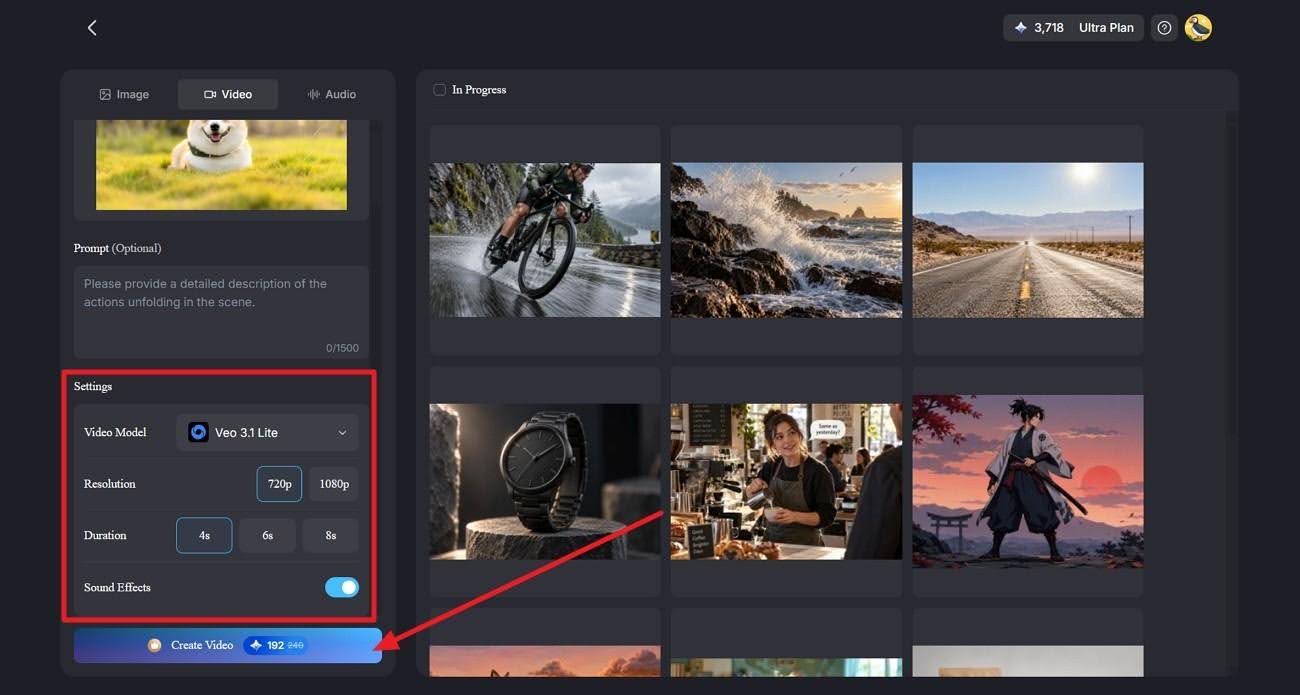
Step 2. Add an optional prompt describing the actions you want to see in the scene. Then choose a Video Model and adjust the available settings, including resolution, duration, and sound effects. When everything is ready, click Create Video.
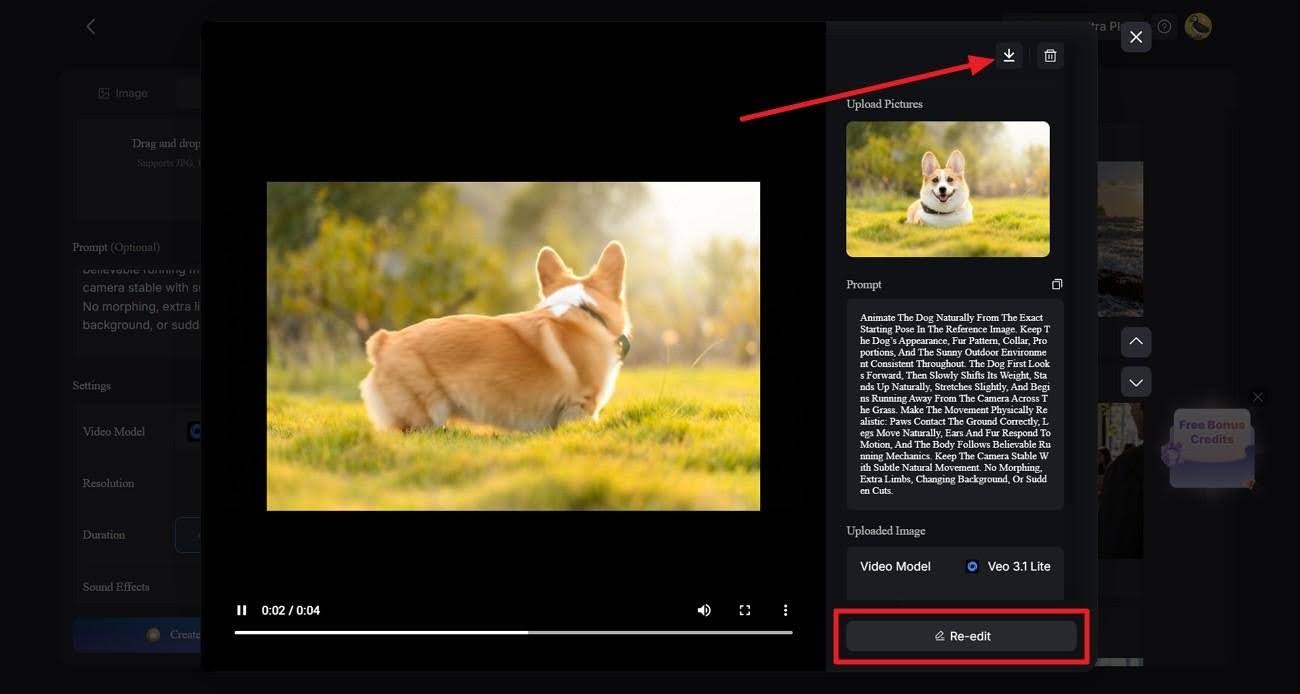
Step 3. Once MagicLight AI generates the video, open it to preview the animation. Review how well the movement follows your prompt and preserves the uploaded image. You can download the finished video or click Re-edit to make changes and generate a new version.
A Prompt That Works
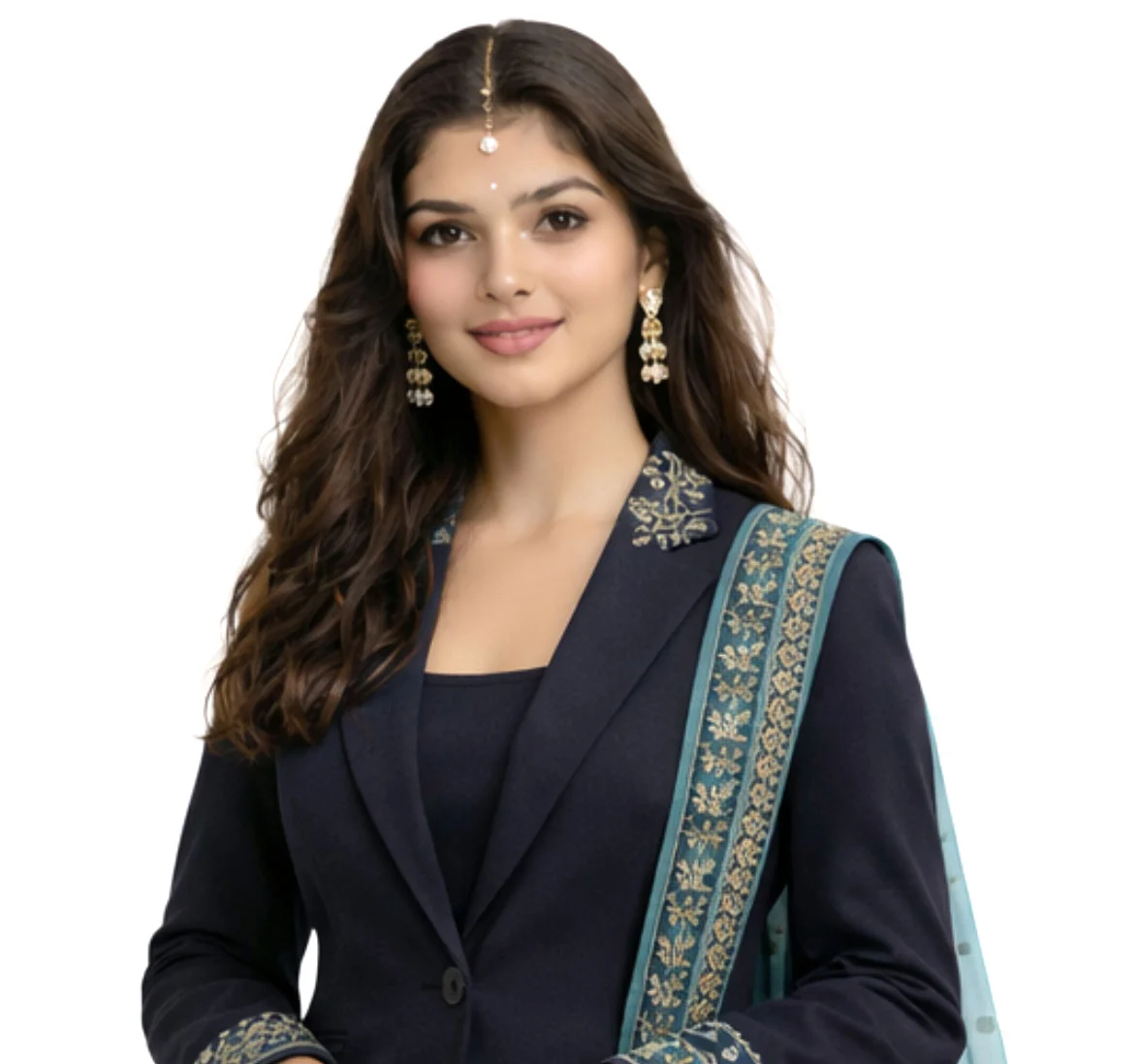
“Animate the portrait with minimal natural motion, where the subject blinks once, takes a quiet breath and develops a small relaxed smile. Hold the camera completely still, and preserve facial proportions, eye color, hairstyle, clothing and background.”
Every clause in that prompt is doing a specific job. The first names the movement, the second controls the camera, and the third protects the likeness. Learning how to animate a photo with AI is largely a matter of writing all three rather than only the first.
Animating a Picture on iPhone
A desktop computer is not required for this process. Browser-based AI tools work on mobile devices, so anyone learning how to animate a picture on iPhone can upload an existing image directly from the photo library.
Live Photos work differently because they record movement around the moment a picture is taken. For an existing still image, an AI image-to-video tool can instead generate new movement that was never captured originally.
Part 2. How to Animate a Photo with AI and Customize the Result
Generating the first clip is only the starting point. The next step is refining movement, camera behavior, subject details, and duration so the animation remains natural. The 4 adjustments below explain how to animate a photo with AI while reducing unwanted changes and keeping the result closer to the original image.
- Use Small, Natural Movements: Limit motion to actions such as blinking, breathing, moving hair, or shifting light. Larger gestures can introduce unwanted changes to faces, hands, and other details.
- Limit Camera Movement: Use a gentle push-in, pan, or small orbit when extra depth is needed. Fast camera movement requires the model to create parts of the scene that are missing from the original image.
- Choose Motion That Fits the Scene: Match the prompt to what would naturally move in the photograph. Clouds can drift across landscapes, steam can rise from food, and reflections can move gradually across product surfaces.
- Control the Clip Before Extending It: Begin with a short generation and check whether important details remain consistent. For longer sequences, tools such as Magiclight AI can place image-based clips within multi-scene videos rather than forcing one animation to carry the entire sequence.
When the Result Looks Wrong
Poor results often begin with the source image or prompt. A blurry image can make existing visual problems more noticeable, while complicated or conflicting motion instructions can produce unexpected movement. Details that are already unclear in the source, including faces or hands, may also become less consistent during generation.
Start with a sharper image and simplify the prompt to the most important movement. If the result still looks wrong, check whether the photograph suggests movement that conflicts with the requested action. Changing the source image or adjusting the prompt can produce a more consistent result.
An animated photograph is generated content rather than a record of an event. When a clip depicts a real person, viewers should not assume the generated actions actually occurred.
Conclusion
A sharp source image, simple prompt, and controlled movement make photo animation more consistent. Anyone learning how to make a picture animated should describe the intended action, avoid excessive movement, and review several versions before choosing one. Older photographs can also work when the scanned image is clear. For longer videos that combine animated images with multiple scenes, Magiclight AI provides a practical option.
FAQs About How to Animate a Picture
1. How can I animate a picture with AI?
Upload a clear still to an image-to-video tool, then write a prompt describing the motion you want rather than the image itself. Anyone learning how to animate a picture with ai should generate two or three versions and keep whichever holds the face and background most steadily.
2. What is the easiest way to animate a photo?
Browser tools with preset motion options need no prompt writing at all. Choosing a ready-made effect such as a smile or a head turn is the fastest route here. Writing your own prompt gives considerably more control over a still picture.
3. Can I create animated pictures with AI?
Yes, and portraits, landscapes, products and scanned prints all work. Knowing how to create animated pictures well means starting from a sharp image, since blurry details carry straight through into the motion.
4. How can I make a picture animated?
Pair the photo with a motion prompt naming one main movement and one background movement. Adding a list of details to preserve, such as hairstyle and clothing, keeps the result recognizable as the original photograph.