Your iPad Pro is more than a device—it’s a command center for presentations, client communications, and daily workflow management. For business professionals who rely on it throughout the day, two persistent challenges emerge: keeping that expansive display free of fingerprints and smudges for a polished, professional appearance, and ensuring the touchscreen remains perfectly responsive when every swipe and tap counts. A grimy screen doesn’t just look unprofessional in meetings; it can actually interfere with touch sensitivity, slowing you down when speed matters most.
So how do you protect this significant investment while optimizing its performance for demanding workdays? The answer lies in a comprehensive care strategy rather than any single fix. In this guide, we’ll walk through the proper daily cleaning techniques that preserve your screen’s integrity, explore how an invisible screen protector can add smudge resistance without sacrificing responsiveness, troubleshoot common touch sensitivity problems, and show how the right iPad Pro case ties everything together into a complete protection system. Let’s ensure your device always looks and performs its best.
The Essential Daily Cleaning Routine for Your iPad Pro
A consistent cleaning routine is the foundation of screen maintenance, yet most professionals only wipe their screen when smudges become visibly distracting—usually right before a client meeting. By then, oils and microscopic debris have already begun accumulating in layers that become harder to remove and can gradually degrade your screen’s natural smudge resistance over time.
The right tools make all the difference. Keep a high-quality microfiber cloth dedicated solely to your iPad Pro—the same type used for camera lenses or eyeglasses works perfectly. For stubborn marks, lightly dampen one corner of the cloth with distilled water or a 70% isopropyl alcohol wipe approved by Apple. Never use window cleaners, household sprays, compressed air, or anything containing ammonia, hydrogen peroxide, or abrasives. These strip the oleophobic coating that gives your screen its natural fingerprint resistance.
Here’s the process that takes under sixty seconds: power off your iPad Pro or put it to sleep and disconnect any cables. Using the dry microfiber cloth, wipe the screen in gentle, consistent strokes moving in one direction—avoid circular motions that simply redistribute oils. For persistent smudges, use the slightly dampened section of the cloth with the same linear motion, then follow immediately with the dry portion to eliminate any moisture traces. Pay attention to the edges where dust collects near the bezel.
Making this a bookend habit—once when you start your workday and once when you finish—keeps your display presentation-ready at all times. You’ll notice fewer fingerprint accumulations throughout the day, and the screen’s factory-applied oleophobic coating will last significantly longer when it isn’t fighting through layers of built-up grime.
Choosing the Right Invisible Screen Protector
While daily cleaning maintains your screen’s appearance, an invisible screen protector acts as a proactive shield that reduces how quickly fingerprints and oils accumulate in the first place. Think of it as adding a renewable oleophobic layer on top of your factory coating—one you can replace without any damage to the underlying display. For business professionals, this means fewer mid-day wipe-downs and a screen that stays clearer between cleanings.
An invisible screen protector refers to an ultra-thin, optically clear film or glass layer designed to be virtually undetectable once applied. Unlike matte protectors that diffuse light and alter color accuracy, invisible variants preserve the iPad Pro’s vivid Liquid Retina or Tandem OLED display exactly as Apple intended. The best options feature their own oleophobic coating that actively repels fingerprint oils, delivering enhanced smudge resistance that outlasts what the bare screen provides alone.
When selecting one, you’ll encounter two primary material categories. Tempered glass protectors offer superior scratch resistance and a tactile feel nearly identical to bare glass, making them ideal for professionals who demand premium responsiveness. Film-based protectors are thinner and more flexible, often self-healing against minor scratches, though they may feel slightly different under the finger. For maintaining touch sensitivity, tempered glass with a thickness of 0.33mm or less is generally the sweet spot—thick enough to protect, thin enough that the digitizer registers every input without delay.
Clarity matters more than you might expect. Look for protectors rated at 99% transparency or higher with anti-reflective properties, especially if you frequently present your screen to clients or work under fluorescent office lighting. Brands like TORRAS offer screen protectors with explicitly rated oleophobic coatings—this single feature determines how effectively the protector resists smudges and how easily marks wipe away with a quick pass of your microfiber cloth. Avoid budget options that skip this treatment, as they’ll attract fingerprints worse than bare glass and create the very problem you’re trying to solve.
Step-by-Step: Applying Your Screen Protector Perfectly
A flawless application ensures your protector remains truly invisible and doesn’t introduce air pockets that could interfere with touch sensitivity. Start by choosing a small, enclosed room—a bathroom after running hot water works well, as steam settles airborne dust particles. Clean your iPad Pro screen thoroughly using the technique described earlier, then use the included dust-removal stickers to lift any remaining microparticles. Align the protector using the guide tabs or alignment frame included in quality kits—never try to eyeball placement on an 11″ or 13″ display. Once positioned, lower the protector from one edge and let adhesion begin naturally. Immediately use the included squeegee tool, applying firm, even pressure from the center outward to push air bubbles toward the edges. If a small bubble persists, gently lift the nearest edge with the provided hinge tab and re-squeegee. Wait 24 hours before judging the final result, as micro-bubbles often dissipate as the adhesive fully cures. A perfectly applied protector should feel indistinguishable from the original screen surface.
Solving Touch Sensitivity Issues: From Smudges to Settings
When your iPad Pro starts missing taps or registering swipes inconsistently, productivity grinds to a halt. Before assuming a hardware defect, understand that most touch sensitivity problems trace back to preventable surface-level or software-related causes that you can resolve in minutes.
The most common culprit is simply what’s sitting on your screen. Accumulated oils, food residue, and microscopic debris create an insulating layer between your fingertip and the digitizer beneath the glass. This interference is subtle—you might not see obvious grime, yet the touchscreen struggles to register light taps consistently. A thorough cleaning using your microfiber cloth often restores full responsiveness immediately. Similarly, a poorly applied or low-quality screen protector can introduce dead zones or delayed response. If you recently installed a protector and notice sensitivity changes, check for trapped air bubbles or lifted edges that break the contact surface. Protectors thicker than 0.4mm or those lacking proper adhesive layers are frequent offenders; removing and replacing with a thinner, higher-quality option typically resolves the issue.
When the screen is clean and unobstructed but problems persist, turn to software diagnostics. Start by ensuring your iPadOS is running the latest version—Apple regularly patches touch-related bugs through updates, and running outdated firmware leaves known fixes on the table. Next, navigate to Settings > Accessibility > Touch > Touch Accommodations. If this feature is enabled unintentionally, it alters how your iPad interprets touch input by adding hold durations or ignoring repeated touches—settings designed for specific accessibility needs that create frustrating delays for standard use. Disable it and test immediately.
If neither cleaning nor settings adjustments help, perform a force restart by quickly pressing and releasing the volume up button, then the volume down button, then holding the top button until the Apple logo appears. This clears temporary software glitches affecting the touch controller without erasing your data. For persistent issues that survive a restart, check whether the problem occurs only in specific apps—a frozen or poorly coded application can mimic hardware failure. Testing in multiple apps isolates whether you’re dealing with a system-wide concern or an app-specific bug that an update or reinstall will fix.
Beyond the Screen: Holistic iPad Pro Care with the Right Case
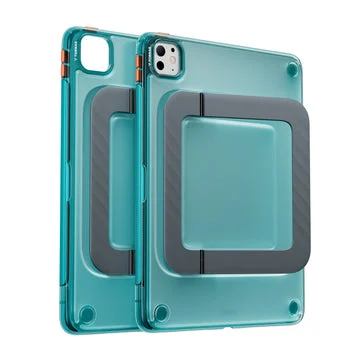
Screen maintenance doesn’t end with cleaning and protectors—what happens to your iPad Pro when it’s tossed into a bag, set face-down on a conference table, or knocked off a desk matters just as much. The right iPad Pro case serves as your screen’s first line of passive defense, working around the clock even when you’re not actively thinking about protection. A case with a raised lip around the display ensures that when your device lands face-down on any surface, the screen never makes direct contact with dust, grit, or abrasive materials that cause micro-scratches and wear down oleophobic coatings over time.
For business professionals, the choice typically comes down to three categories. Folio-style cases with integrated front covers offer continuous screen shielding and a polished aesthetic suitable for boardrooms—the cover keeps dust and debris off the display during transit and doubles as a stand for presentations. Keyboard cases add productivity value but tend to be heavier; their rigid structure provides excellent edge protection though they may leave the screen exposed when folded back. Rugged cases deliver maximum impact absorption for professionals who move between job sites or travel frequently, though they sacrifice some sleekness. Whichever style fits your workflow, the case completes an ecosystem of protection alongside your invisible screen protector and daily cleaning routine—each layer addressing a different threat so your iPad Pro’s display remains flawless and responsive through months and years of professional use.
Building a Complete iPad Pro Screen Protection System
Keeping your iPad Pro screen clean and responsive isn’t about any single product or habit—it’s about building a layered system where each element reinforces the others. Your daily cleaning routine with a dedicated microfiber cloth preserves the display’s oleophobic properties and removes the oils that quietly degrade touch performance. A quality invisible screen protector adds renewable smudge resistance and scratch defense without compromising the clarity or responsiveness you depend on during fast-paced workdays. And a well-chosen iPad Pro case with a protective lip or integrated cover shields your screen from the environmental hazards that accumulate between active uses—dust in your bag, grit on a conference table, or an accidental face-down placement.
Together, these three layers address every threat your display faces: surface contamination, physical damage, and the gradual wear that diminishes both appearance and sensitivity over time. For business professionals who rely on their iPad Pro as a primary tool, this approach ensures your device consistently projects the same polished, high-performance standard you bring to your work. Invest a few minutes each day in maintenance, choose protective accessories thoughtfully, and your iPad Pro’s screen will remain as sharp and responsive as the day you unboxed it—ready for whatever your next meeting, presentation, or deadline demands.